Claude Code on Windows: 2 Routes, Pick One in 1 Minute, Install in 30
Claude Code runs on Windows via Native Windows (PowerShell) or WSL. Native is the official Recommended path — no admin rights, no Node.js, one command, 15 minutes. Decision flow and step-by-step for both routes, plus the 3 failure points that trip people up.
What you'll learn in this article
- Where pricing and adoption questions around Claude Code stand right now
- Which plan or rollout stage fits the reader's situation
- Which follow-up article to open next for setup, cost, or bigger-picture context

“Can Claude Code run on Windows?” I’ve gotten that question four times this week. Three were from marketers and executives; one was a company’s sole engineer. The only thing they had in common: they’re not on Mac.
The answer is yes. Windows is on the official supported platform list, and if you install it correctly, you’re running in 30 minutes. The issue is that Windows has multiple installation paths — which one you pick in the first minute determines how the rest of the experience goes.
Three things you’ll be able to do after reading this
- Explain the difference between Claude Code’s two main Windows routes — Native Windows and WSL — in your own words
- Choose your route using a 1-minute decision flow
- Complete the install in under 30 minutes and run your first conversation
The Short Answer: Claude Code Works on Windows. Two Routes.
Three quick answers first.
- Claude Code runs on Windows. Supported: Windows 10 version 1809 or later, Windows Server 2019 or later.
- There are two main operation routes. Native Windows (PowerShell) and WSL (Windows Subsystem for Linux).
- Start with Native Windows. The official documentation marks it “Recommended.” One command in PowerShell. Done.
There used to be a lot of content out there claiming Claude Code required a Linux environment. The current official documentation puts Native Windows (PowerShell) front and center as the “Native Install (Recommended)” path. WSL is still available for people who want Linux alongside Claude Code — it’s not required.
Having “multiple routes” sounds complicated, but the decision framework fits in one minute. We’ll get there next.
Native Windows vs. WSL vs. Git Bash: The Breakdown
The two main routes, plus where Git Bash fits in.
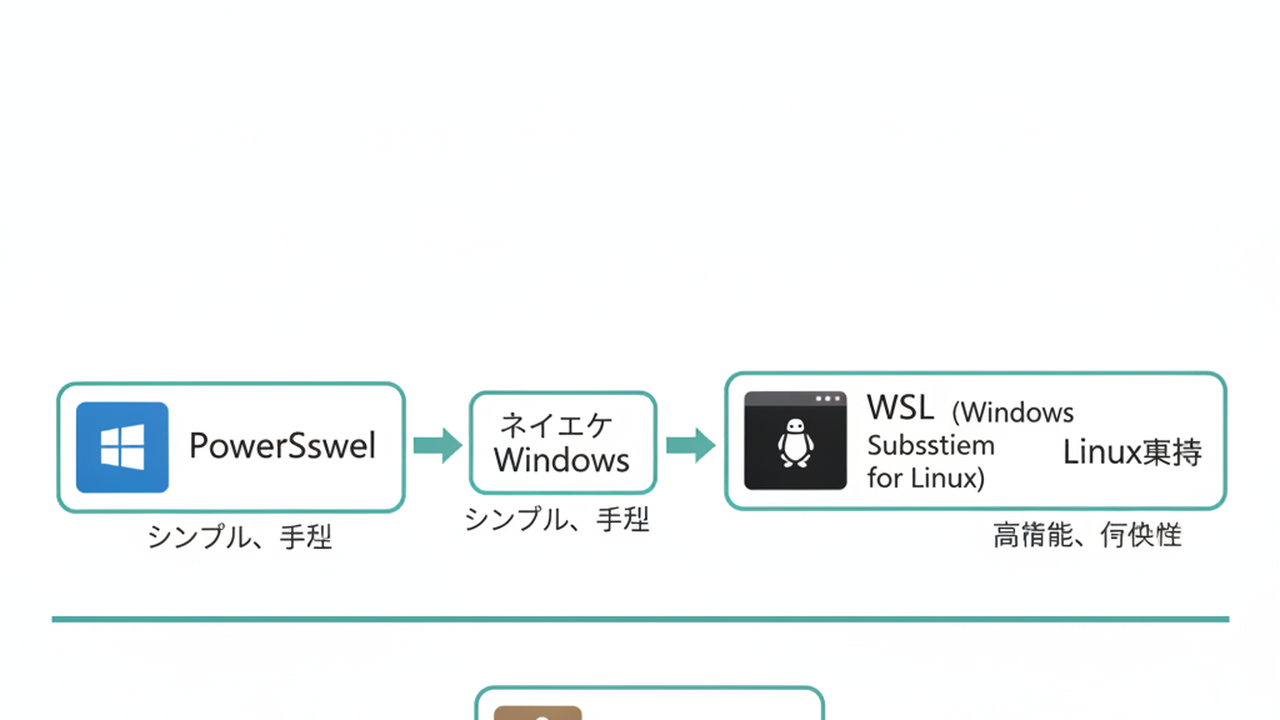
1. Native Windows (PowerShell) — the official Recommended route
Runs Claude Code directly from the PowerShell or Command Prompt that comes with Windows. One command to install. No Node.js. No extra software.
Setup time: 10–15 minutes. Windows file paths (C:\Users\...) work directly — no path translation to deal with. Official documentation labels this “Native Install (Recommended).”
2. WSL (Windows Subsystem for Linux) — for when you also want Linux tooling
Runs a Linux environment (Ubuntu, etc.) inside Windows — a Microsoft-provided, free feature. Running Claude Code inside WSL lets you combine it with Linux shell scripts and tools more naturally.
Setup time: 20–30 minutes (one PC restart required). Suited for people already comfortable with Linux development, those planning to use Linux-dependent MCP servers, or anyone who needs sandboxed command execution. The official documentation states explicitly: Native Windows doesn’t support sandboxing; WSL 2 does.
3. Git Bash — a supplement to Native Windows, not a separate route
The Bash-compatible shell that comes with Git for Windows. Functions as an add-on when you’re in a Native Windows environment and occasionally want bash commands.
If you’re starting fresh and only need Claude Code, you don’t need Git Bash. Native Windows (PowerShell) is simpler. If you already use Git Bash daily, Claude Code will run there fine.
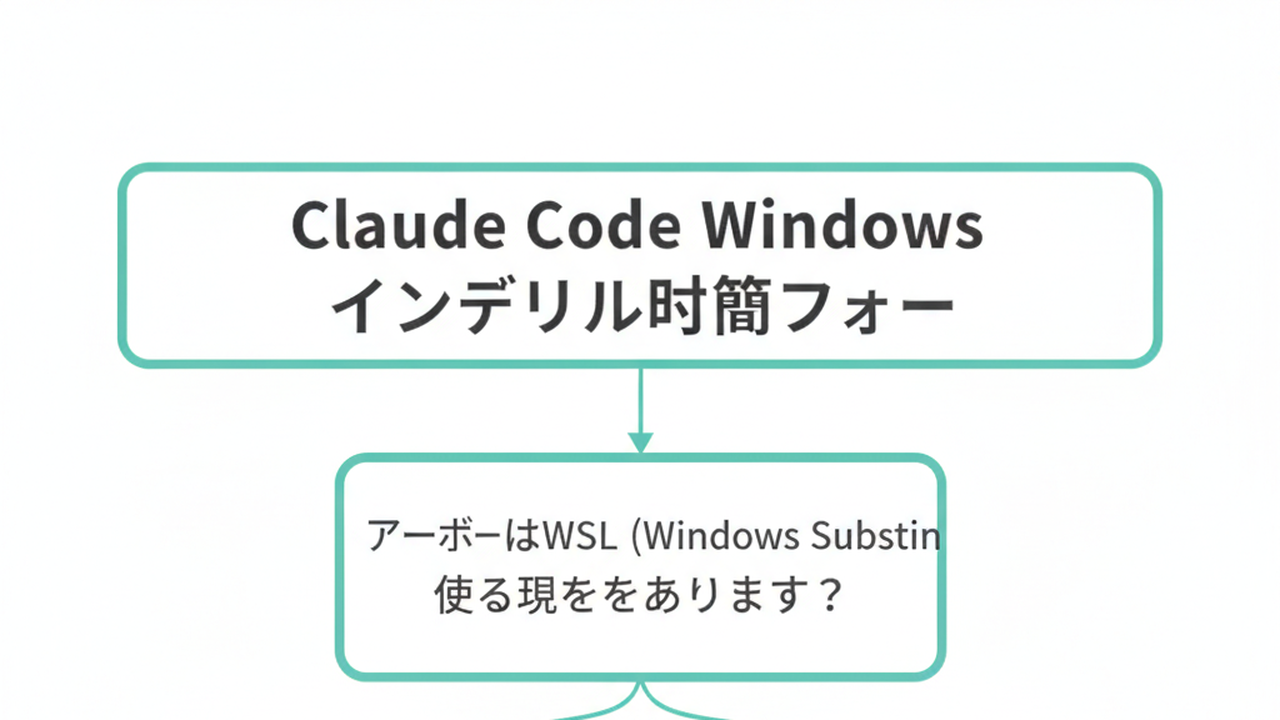
The decision is one question:
- Do you have a specific reason to use WSL? (combining with Linux tooling, running Linux-dependent MCPs, or need sandboxed command execution) → WSL
- Everything else → Native Windows (PowerShell)
Git Bash is something to add later, if PowerShell becomes limiting.
Native Windows: The Official Recommended 30-Minute Setup
Step-by-step for the “Native Install (Recommended)” route. No admin rights needed.
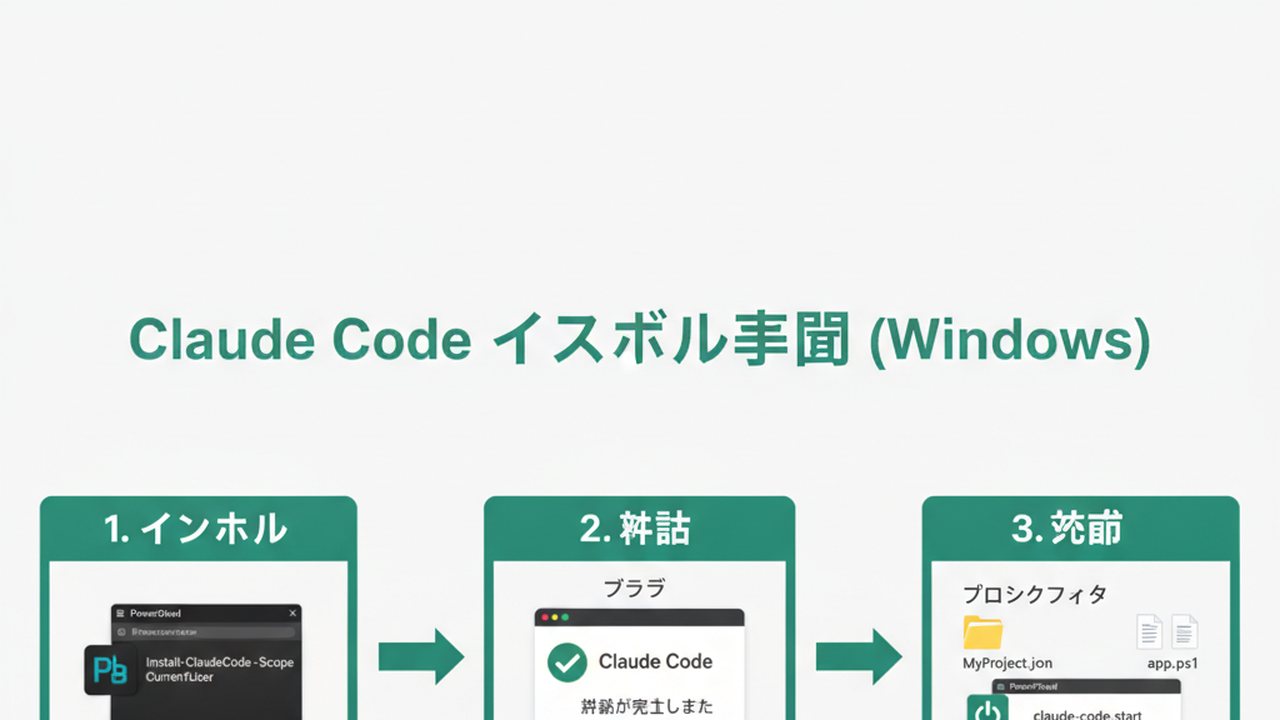
Step 1: Run the install command in PowerShell (10–15 min)
Search for “PowerShell” in the Start menu and open it. No “Run as administrator” — standard launch is fine. Paste in:
irm https://claude.ai/install.ps1 | iexThis runs Anthropic’s official installer. irm fetches the file from the internet; iex executes it. You don’t need to understand the internals — one line does everything.
If you have WinGet installed (Windows 11, or an updated Windows 10):
winget install claudeBoth do the same thing. Pick either.
When installation finishes, you can use the claude command. Type claude --version — if a version number comes back, you’re in.
Step 2: Launch Claude and authenticate (5 min)
Still in PowerShell, type claude and hit enter.
On first launch, a browser window opens with Anthropic’s login screen. Sign in with the email you use for Claude (the chat version). When login completes, the browser closes and a confirmation message appears in PowerShell.
Step 3: Run Claude in a project folder (15 min)
Navigate to the folder you want to work in and launch Claude. Example — if you have a test folder on your desktop:
cd C:\Users\YourUsername\Desktop\test
claude
In Native Windows, C:\Users\... paths work exactly as-is. No translation needed.
When the interactive session opens, type: “Summarize what’s in this folder.” If it responds in your language, you’re operational.
For tips on stabilizing Japanese-language responses, the CLAUDE.md setup in Claude Code in Japanese: 3 Settings and Where English Persists applies directly.
WSL: For When You Also Want Linux (20–30 Minute Setup)
For people who want Linux tooling alongside Claude Code, or need Linux-dependent MCP servers.
Step 1: Install WSL (10 min, includes PC restart)
Search for “PowerShell” in the Start menu, right-click it, and select “Run as administrator.” Enter:
wsl --installUbuntu installs automatically. Restart your PC when prompted. After restart, an Ubuntu first-time setup screen appears where you’ll set a username and password. These become your WSL account credentials.
WSL installation requires admin rights. If you’re on a work PC and “Run as administrator” isn’t available, ask IT: “I need WSL installed.” If they ask why: “I’m setting up Claude Code, a development tool from Anthropic.” If WSL can’t be installed on your machine, use Native Windows instead.
Step 2: Install Claude Code (5 min)
In an Ubuntu terminal:
curl -fsSL https://claude.ai/install.sh | shThis fetches and runs the official install script from Anthropic. When it’s done, claude is available. Type claude --version — version number means success.
Step 3: Launch Claude and authenticate (5 min)
Same flow as Native Windows: type claude, browser opens, sign in, authentication confirmation appears in the terminal.
Then navigate to your project folder. In WSL, Windows’ C drive is accessed via /mnt/c/:
cd /mnt/c/Users/YourUsername/Desktop/test
claude
This is the key difference from Native Windows: C:\Users\... becomes /mnt/c/Users/.... Takes one or two sessions to become automatic.
The 3 Failure Points on Windows (And How to Avoid Them)
These are the places where following the steps correctly still trips people up.

Failure 1: Japanese (or non-ASCII) characters in the file path
Paths like C:\Users\Tanaka\Desktop\test — with multi-byte characters — can cause Claude Code to fail to find files or produce garbled output.
The fix: move your working folder to a purely alphanumeric path. Create something like C:\Projects\ and keep your projects there. If your Windows username contains non-ASCII characters (which sets that as your home path), operating out of C:\Projects\ from the start is the safest approach.
Failure 2: Can’t install WSL — no admin rights
WSL requires admin rights. If “Administrator permissions required” appears on a work PC, this can’t be resolved individually.
Text for an IT request: “I’d like to request activation of Windows Subsystem for Linux (an official Microsoft feature) to use Claude Code, an AI development assistance tool from Anthropic. This will require enabling virtualization features.”
If WSL can’t be installed, proceed with Native Windows. Native Windows installation doesn’t require admin rights.
Failure 3: API key isn’t taking effect
Claude Code primarily runs on browser-based authentication. If you want to use an API key directly, you need to set the ANTHROPIC_API_KEY environment variable. Where it gets tricky: Native Windows and WSL have separate environment variable stores.
- Setting in Native Windows: In PowerShell →
[System.Environment]::SetEnvironmentVariable("ANTHROPIC_API_KEY", "sk-...", "User") - Setting in WSL: In the Ubuntu terminal, add
export ANTHROPIC_API_KEY=sk-...to~/.bashrc
A key set in Native Windows won’t be visible to WSL, and vice versa. If you want both environments to work, set it in both. From experience: picking one environment and staying in it keeps things much simpler.
For billing: browser authentication charges against your subscription plan. API key usage is pay-as-you-go. Starting with browser authentication keeps your costs predictable. For a full breakdown: Claude Code Pricing: Understanding the Monthly Cost Range.
FAQ: 3 Questions That Come Up Most
Q1: Can non-engineers really use this on Windows?
Yes, immediately. The Native Windows path is one command in PowerShell. No admin rights. No additional software. The initial barrier is low.
I’ve seen marketers, executives, and business owners run Claude Code on Windows. What they all did: focused for the 15-minute install. Once it’s running, the rest is just conversations.
For what Claude Code actually lets you do: Claude Code: 8 Use Cases With Real Examples for Non-Engineers.
Q2: Will it work on a corporate PC without admin rights?
Native Windows (PowerShell route): yes, no admin rights needed. The irm https://claude.ai/install.ps1 | iex command runs in standard PowerShell, no administrator elevation required.
That said, if your company’s security policy prohibits installing unauthorized software, the technical capability doesn’t solve the compliance question. Check with IT first.
Q3: What’s different from Mac or Linux?
Mac and Linux are the standard environments Claude Code was designed for. They just work, from the start. Windows adds one choice: run it natively (PowerShell) or with a Linux layer underneath (WSL). Once you’re running, the output and capabilities are functionally identical to Mac.
The real gap shows up when troubleshooting. “Claude Code error” searches return mostly Mac/Linux examples. Get in the habit of adding “windows” to your error search queries.
For general Claude Code usage workflow: Claude Code How-To: Workflow for People Who Don’t Write Code — the approach applies directly on Windows.
Wrap-Up: 3 Actions for This Week
Claude Code’s Windows support is more straightforward than the reputation suggests. Official Recommended is Native Windows via PowerShell — no admin rights, no Node.js, one command, done.

Three actions for this week:
- Check your Windows version (5 min). Type
winverin the Start menu, or go to Settings → System → About. Windows 10 version 1809 or later, or Windows 11, means you’re good. - Run the install in PowerShell (15 min).
irm https://claude.ai/install.ps1 | iex. Browser authentication. That’s it. - Start Claude in one project folder and run one exchange (15 min). Type “Summarize this folder.” If it responds, you’re up and running.
Total: 35 minutes. Fits in a weekend morning.
If you’ve been putting this off because “Windows probably won’t work” — block off this 35 minutes. Monday morning, Claude Code is already running on your machine.

AIを使いこなせない方は、この先どんどん差がつきます。僕はAIエージェントを毎日動かして、壊して、直して、また動かしてます。そういう泥臭い実践の記録をここに書いてます。理論は他の方にお任せしました。僕は動くものを作ります。朝5時に起きてウォーキングしてからコードを書くのがルーティンです。