Claude Code: 8 Use Cases for Non-Engineers — Get Started in 30 Minutes
For anyone stuck on 'what can Claude Code actually do?' — 8 use cases including non-coding tasks, 3 key differences from Claude chat, the 3-layer structure, a 30-minute minimum implementation, and what it can't do. Laid out in the order I actually experienced them.
What you'll learn in this article
- Where pricing and adoption questions around Claude Code stand right now
- Which plan or rollout stage fits the reader's situation
- Which follow-up article to open next for setup, cost, or bigger-picture context

“So what can Claude Code actually do?”
The number of people landing here after that search grows every week without fail.
My answer is simple. Claude Code isn’t a “conversational AI” — it’s an “AI that does work on your PC for you.” It’s not just a tool for people who can write code. Organizing files, summarizing meeting notes, extracting data, rewriting procedures. The unglamorous daily tasks that non-engineers handle constantly — Claude Code will do those for you based on natural language instructions.
You know the experience of pasting text into ChatGPT or Claude’s chat window, getting an answer, and then copy-pasting it into your actual work? Claude Code is decisively different from that. There’s no copy-paste. Give Claude Code an instruction and it reads the files in your PC directly, writes to them, reorganizes them, and saves the result — all in one go. It’s not work happening in your head. The work in front of you actually gets done.
This article is for people who searched “what can Claude Code do,” read through a features list, and still can’t grasp “okay, but what actually changes?” Eight use cases, the differences from Claude, the 3-layer structure, a 30-minute minimum implementation, and what it can’t do — laid out in the order I personally experienced them.
1. The Upfront Answer: 8 Use Cases at a Glance
First, the conclusion. What you can do with Claude Code breaks into 8 use cases.
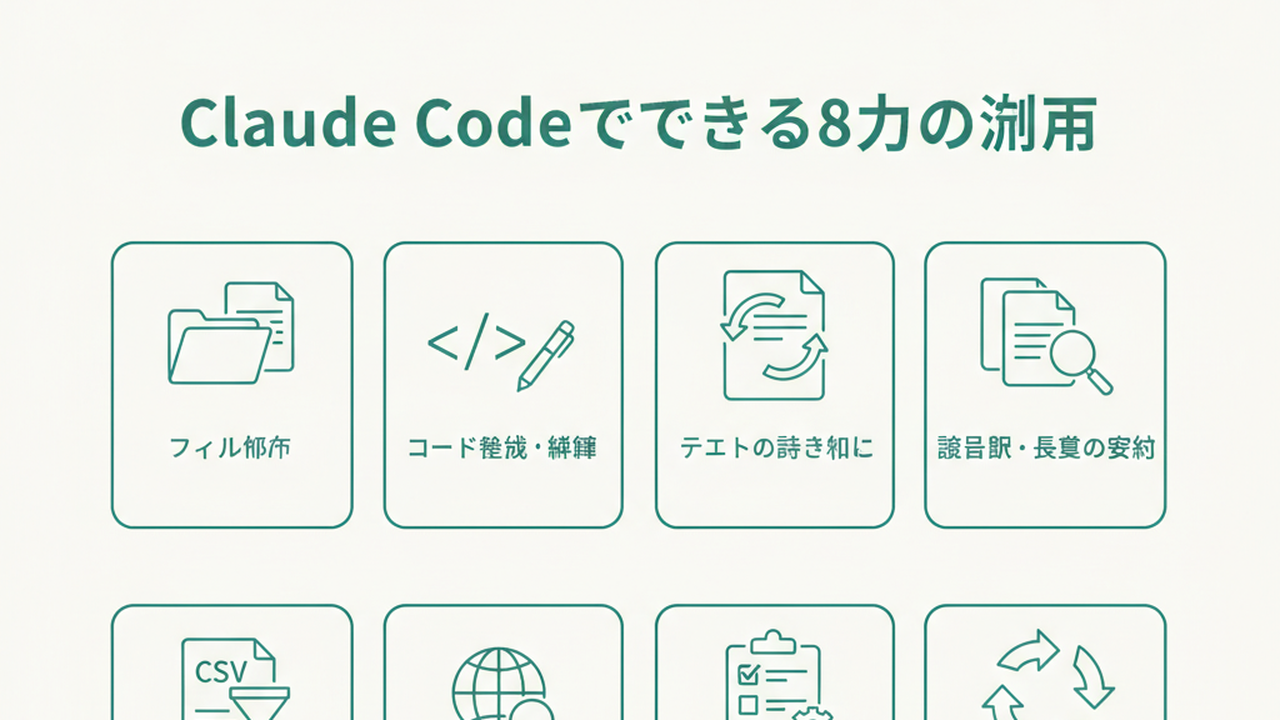
- File operations: Organize folder contents, read files and summarize their contents, bulk-rewrite multiple files
- Code generation & editing: Write new programs, fix existing code, add tests
- Text rewriting: Clean up meeting notes, polish email drafts into formal language, rewrite procedures for new employees
- Meeting notes & long-form summarization: Pull only action items and decisions from an hour-long meeting; get the core of a paper or article in 3 lines
- Data extraction & formatting: Pull rows that match a condition from a CSV or table, convert formats, restructure tables
- Research task delegation: Given a set of URLs or reference materials, collect and organize the information you need
- Procedure documentation: Generate procedure docs from an actual work log, update outdated docs to match current practice
- Batch processing of multiple tasks: Combine the above 7 in sequence under a single instruction
At this point you’re probably thinking: “Isn’t that what ChatGPT can do too?” Half right, half wrong. ChatGPT and Claude “think” on your behalf. Claude Code “does work” on your behalf. That gap feels enormous once you use it in a real work context.
Ask Claude Code: “Pull all the invoices from the 300 PDFs in this folder and sort them into monthly subfolders.” Claude Code will directly look at your folder, read the PDFs, make judgments, create folders, move files, and report back when it’s done. Give the same instruction to Claude or ChatGPT chat and what you’ll get is “here’s how you’d do that” — and you’d have to execute each step yourself.
The official overview documentation defines Claude Code as “running in the terminal and directly integrating into developers’ workflows” (Anthropic, Claude Code overview). “Directly integrating” is the subject of this article.
That covers the big picture. Next, I’ll nail down the differences from Claude (the chat version) along 3 axes.
2. 3 Differences Between “Claude” and “Claude Code” — Why the Capabilities Expand
The most frequent question I get from search traffic: “What’s the difference between Claude and Claude Code?” Half the people in any organization I explain this to still mix them up. Three axes of distinction.
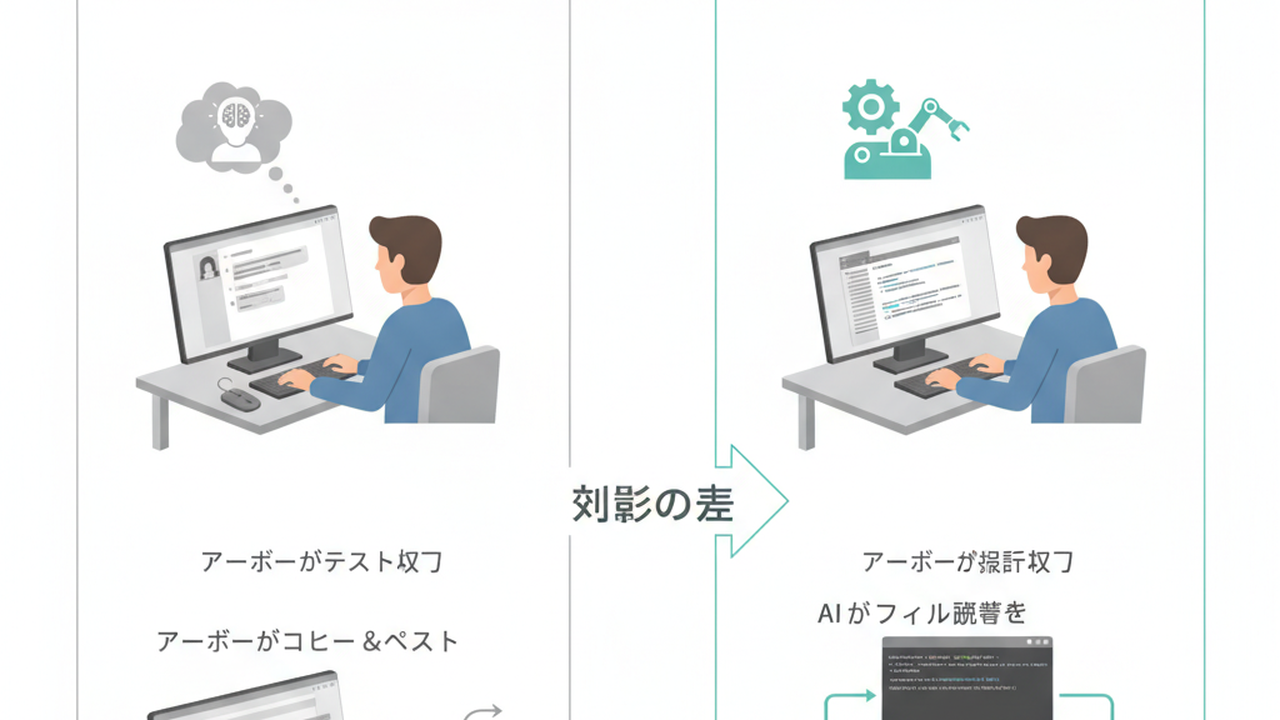
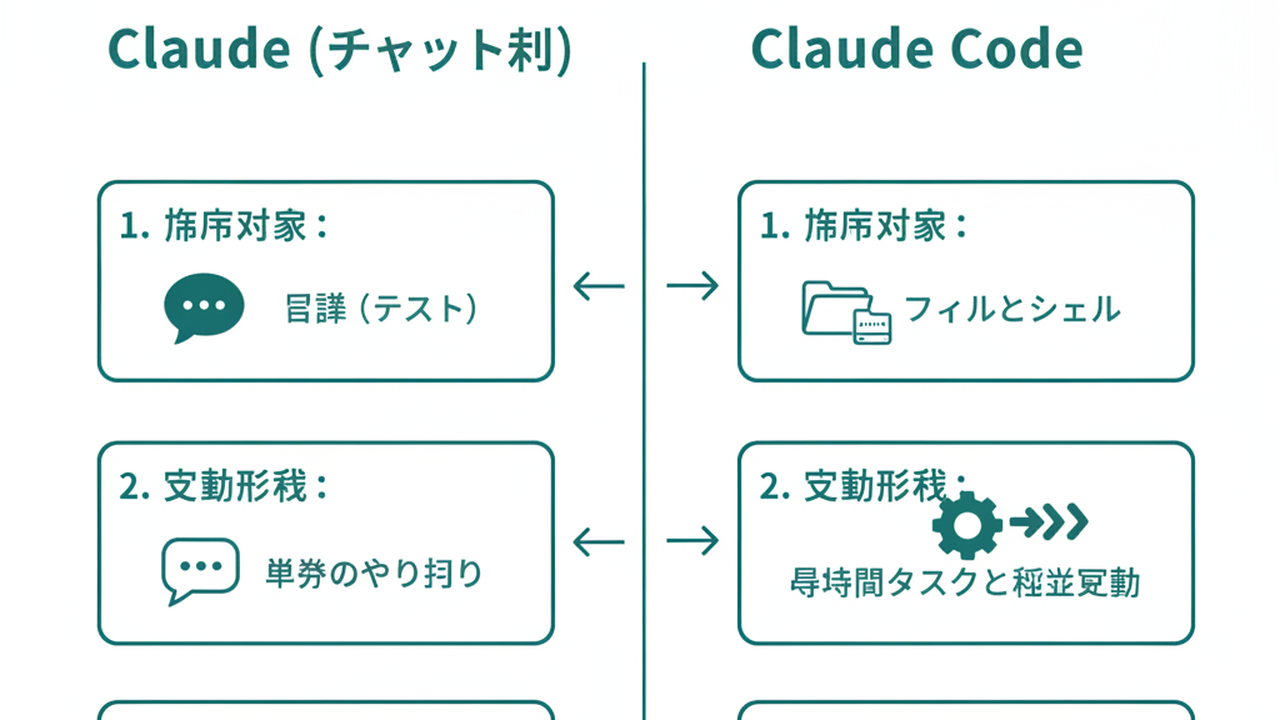
Difference 1: “Words only” vs. “Files and shell”
Claude (chat) operates entirely inside a browser window. You enter text; AI returns text. That’s it. Whatever comes out, copying it over to use in your actual PC is something you do yourself.
Claude Code runs in the terminal on your PC. Give it an instruction in natural language and Claude Code actually reads the files in your folders, rewrites them, creates new ones, and saves the result — in one continuous operation. Shell commands execute directly. “Back-and-forth conversation” becomes “completed work.” That’s the first difference.
Difference 2: “Single exchanges” vs. “Long-running tasks and parallel execution”
Claude’s chat works on a basic Q&A model. Ask a question, get an answer, ask another. Short exchanges in succession.
Claude Code can execute long-running tasks continuously from a single instruction. Say “read this entire folder, write a one-line summary for each file, and create a table of contents” — Claude Code runs autonomously for however many minutes it takes. There’s also a sub-agents mechanism that can process multiple tasks in parallel (Anthropic, Sub-agents).
The difference between “advance through conversation” and “give an instruction and wait for results.” That’s the second difference.
Difference 3: “Through a browser via API” vs. “Direct execution on local PC”
Claude does have official integrations with GitHub, Google Drive, Gmail, and others — it can connect to some external services through APIs. But “directly reading and rewriting files in your local folder” and “executing shell commands” are outside Claude’s territory. Its stage of operation stays inside the browser.
Claude Code runs directly in your local environment. Through the terminal, it reads, rewrites, creates, and deletes files — all in one operation. Shell command execution is included. Add MCP (Model Context Protocol) and you can extend connectivity to external tools like Slack, Notion, GitHub, and databases (Anthropic, Claude Code MCP).
“Talking through a browser” versus “executing work inside your PC.” That’s the third fundamental difference.
The Three Differences in One Line
Claude is a “smart advisor.” Claude Code is a “smart executor.” Different roles, different scope of capability.
With that, the 8 use cases take on different meaning. Next, I’ll re-read the 8 use cases through a 3-layer structure.
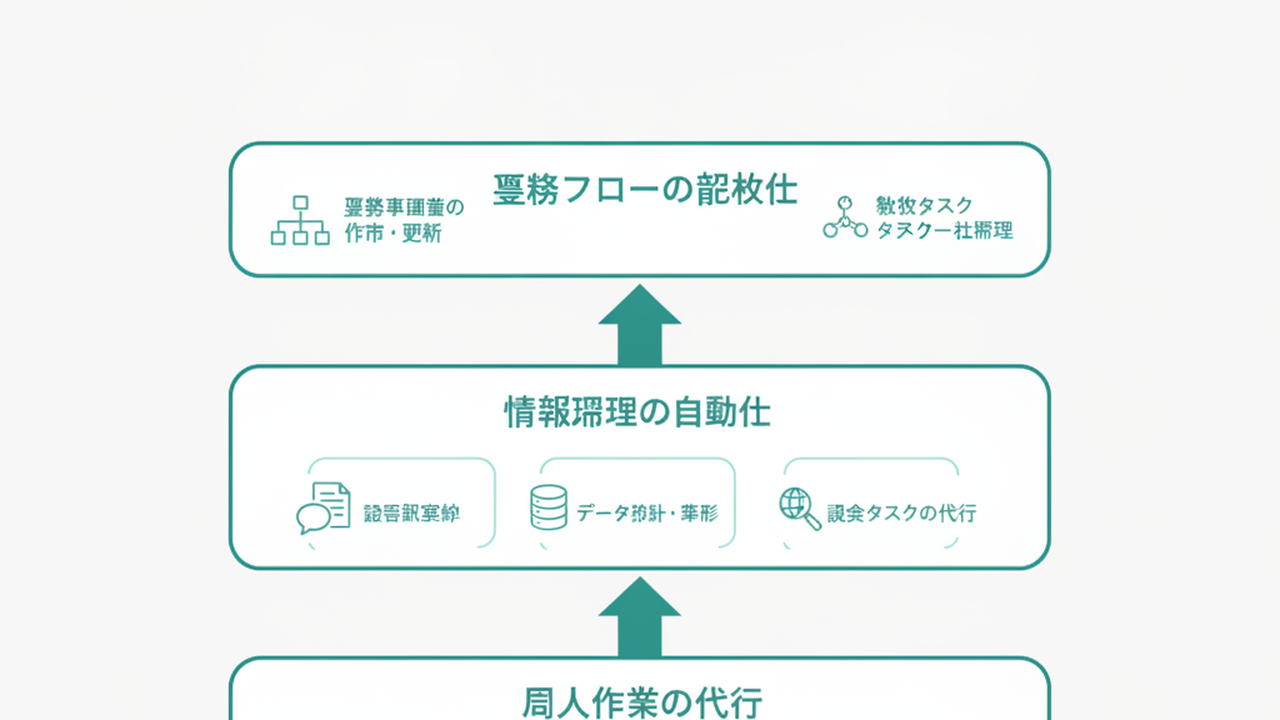
3. The 8 Use Cases as a 3-Layer Structure: Personal Tasks, Information Processing, and Workflow
Trying to memorize all 8 use cases individually is a recipe for forgetting them. Remember them as a structure that stacks into 3 layers. This is the axis you’ll use when applying Claude Code to your real work later.
Layer 1: Personal Task Delegation (File Organization, Code Generation, Text Rewriting)
Layer 1 is having Claude Code handle the files or text in front of you. “Things I’m currently opening and editing by hand” get replaced with a single natural-language instruction.
Concretely: file organization, code generation and editing, and text rewriting — three categories. One instruction maps to one task. If you’re trying this for the first time, start here. Results come within 30 minutes, so the feedback is fast.
Examples: “Rename the meeting notes in this folder in chronological order.” “Swap the column order in this spreadsheet.” “Polish this email draft into something a bit more formal.” Short instructions, short results. This is the layer where “oh, it actually works” gets into your body.
Layer 2: Information Processing Automation (Note Summarization, Data Extraction, Research)
Layer 2 is delegating “read,” “find,” and “compile” tasks to Claude Code. If Layer 1 is “modify,” Layer 2 is “make sense of.”
Three categories: meeting note summarization, data extraction, and research delegation. One instruction maps to a combination of tasks. The volume of information handled increases. Tasks in the 30-minutes-to-several-hours range.
Examples: “Pull only the comments about next quarter’s priorities from all last week’s internal meeting notes.” “From these 100 pieces of feedback, classify only complaints about Product A and sort by frequency.” Work that would take half a day by hand finishes with 30 minutes of instruction and a few minutes of waiting. That’s the feel of this layer.
Layer 3: Workflow Construction (Procedure Documentation, Batch Processing)
Layer 3 is redesigning the shape of work itself using Claude Code. Combine the use cases from Layers 1 and 2 to automate an entire workflow from start to finish.
Two categories: procedure documentation and batch processing of multiple tasks. One instruction maps to the whole business operation. At this level, Claude Code stops feeling like a “tool” and starts feeling more like a “team member.”
Example: “Every Monday morning, collect last week’s customer inquiries, classify them by category, sort by priority, and post to Slack.” Run that on repeat from a single configuration. At this point, how you think about replacing work changes fundamentally.
The 3 Layers Stack Bottom Up
Don’t jump into the top layers. Always start with Layer 1. Without the visceral experience of “the file actually reorganized when I told it to,” Layers 2 and 3 won’t feel trustworthy. Conversely, spend a week playing in Layer 1 and the use cases for Layers 2 and 3 reveal themselves naturally. That’s what I found onboarding several team members through this progression.
Next, I’ll translate each use case into a minimum implementation that fits within 30 minutes.
4. Mapping 8 Use Cases to 30-Minute Minimum Implementations
Even with the 3-layer structure in hand, “so what do I actually type first?” remains. Here’s a mapping of all 8 use cases to minimum implementations you can try within 30 minutes.
| Use case | First instruction (within 30 min) | Completion estimate | Next step |
|---|---|---|---|
| File operations | Separate the .pdf files in this folder into “invoices” and “everything else” | A few minutes | Extend to monthly subfolders |
| Code generation & editing | Fix this old Python script to run on Python 3.12 | 5–10 minutes | Apply the same approach to another script |
| Text rewriting | Rewrite this internal email draft into formal language for an external partner | A few minutes | Templatize and apply to other cases |
| Note & long-form summarization | Pull only “Decisions,” “To-Dos,” and “Homework for next time” from this meeting notes | 5 minutes | Standardize all weekly meeting notes to this format |
| Data extraction & formatting | Export only the rows containing “Tokyo” from this CSV to a separate file | A few minutes | Combine multiple conditions |
| Research task delegation | Read the content of these 3 URLs and summarize the similarities and differences in a table | 10–20 minutes | Scale up to 5, then 10 sources |
| Procedure documentation | Write out what I did yesterday in step-by-step format for new employees | 10–15 minutes | Update an existing procedure doc to current practice |
| Batch processing | Read 10 meeting notes in this folder, pull the decisions, and sort by date | 15–25 minutes | Set this to run “every Monday” |
How to Use the Table
From the 8 use cases in the vertical axis, apply just one that matches something you’re actually doing this week. Trying three or more on day one is how you fail before the day is done.
Once you’ve picked one, it’s fine to type the “first instruction” from that row directly into Claude Code. The closer your phrasing is to how you’d ask a colleague, the more accurately Claude Code performs. Conversely, vague expressions like “process it appropriately” or “fix it up nicely” produce inconsistent results. Specify the filename and the desired form of the output concretely. That’s all you need to follow for day one to work.
That covers the “what it can do” side. Next: the limits that are absolutely worth knowing.
5. 3 Limits of What Claude Code Can’t Do — Avoiding Overconfidence
Once you start using Claude Code for real work, you’ll hit a “nope, not this” moment at some point. Knowing in advance is worthwhile. Narrowed to three.
Limit 1: Direct operation of external systems is restricted
Claude Code can connect to external tools via MCP, but external services without a prebuilt connector can’t be operated directly. A company’s proprietary order management system, closed industry-specific business systems — connecting to these requires writing a connector on a case-by-case basis.
Two workarounds. First: start with major services that have MCP-compatible connectors available (Slack, Notion, GitHub, major databases). Second: for proprietary internal systems, rather than forcing direct integration, set up an operation where “the system exports to CSV and Claude Code handles the CSV.” Accepting indirect integration is sufficient for practical use.
Limit 2: Replacing GUI apps is not Claude Code’s forte
Claude Code operates in the terminal and file system. Tasks that advance by clicking through a screen (GUI operations) are fundamentally outside its strength. Processing an image in Photoshop, editing a timeline in video editing software, navigating a sequence of screens in a business application — that’s work for a separate RPA tool or a different type of AI agent.
One workaround: from the start, assign Claude Code to “files and data,” and assign GUI operations to a separate tool or a person. Trying to do both from one tool will cause a jam somewhere.
Limit 3: Running fully unattended on an infinite loop is dangerous
Claude Code can run long-running tasks continuously, but “leave it running forever without supervision” is dangerous. When judgment errors or unexpected behavior mix in without human eyes on it, the results can be irreversible. Mass file deletion, incorrect content sent externally, destructive operations on production data.
Two safeguards. First: configure it to require confirmation before important operations (controllable through Claude Code’s permission settings). Second: don’t point it at production on day one. For the first week, run it only on test folders, test accounts, and test data. Once it proves reliable, expand to production. This is what the official documentation consistently recommends (Anthropic, Claude Code overview).
Knowing What It Can’t Do Expands What It Can Do
The three limits aren’t weaknesses in Claude Code — they’re division-of-labor boundaries. The gap in range of application between people who internalize those boundaries and people who don’t will be enormous six months from now.
That covers use cases, differences, the 3-layer structure, minimum implementation, and limits. Finally: what to do in the first 30 minutes after reading this article.
6. What to Do in the First 30 Minutes — From Installation to Replacing One Work Step
This is the execution section — so this doesn’t end as just reading. Three phases, 30 minutes total.
0–5 minutes: Check your plan and install
Check Anthropic’s official pricing page for the plan that fits your situation. For individual use, starting with Pro is realistic. As monthly usage grows, you can step up to Max 5x or Max 20x (Anthropic official pricing, as of June 2026). Pricing is subject to change — verify the latest plan options on the official page.
Installation via npm or the native installer takes a few minutes. Detailed steps are in the separate article Claude Code: How to Get Started. For a closer look at pricing tradeoffs, see Claude Code Pricing.
5–15 minutes: Try just one Layer 1 use case
Once installation is done, pick just one from Layer 1 of the 3-layer structure.
Recommended: “File organization” or “Text rewriting.” The reason: results are visible. Try asking for something you normally do by hand in small ways — “Rename the notes in this folder in chronological order” — in natural language.
Results come back within a few minutes. If it’s what you expected, try a different instruction. If not, adjust the phrasing and try again. Experiencing both “it works as expected” and “it didn’t work” is the goal of this 15 minutes.
15–30 minutes: Apply it to one step in your actual work
The last 15 minutes are the application phase. Think of one tedious task in your current workload that takes around 30 minutes to do manually — organizing source data for a monthly report, classifying weekly inquiry emails, prepping the agenda before a standing meeting. Anything works.
Translate that task into an instruction for Claude Code. Then run it. It doesn’t have to be perfect. Go in with “if it’s half right, that’s a win” energy.
30 minutes later, you should have one concrete output that Claude Code finished in your place. That output becomes the basis for judgment over the next few weeks. “Maybe that other task is doable too” will surface naturally. That’s the entry point to Layers 2 and 3.
Detailed steps for the first three moves are in the separate article Claude Code: How to Use It. For a company-wide deployment case study, see Company-Wide Claude Code Deployment Designed by KAG.
Summary: This Week’s One Move
Thank you for reading this far. One last consolidation.
- 8 Claude Code use cases: file operations, code generation, text rewriting, summarization, data extraction, research, procedure documentation, batch processing
- 3 differences from Claude: “words only” vs. “files and shell”; “single exchanges” vs. “long-running and parallel”; “browser-only” vs. “MCP”
- Remember the 3-layer structure: Layer 1 = personal task delegation; Layer 2 = information processing automation; Layer 3 = workflow construction
- Minimum implementation for each use case: pick one and try it today
- 3 limits: external system direct connection is limited, GUI operations are weak, fully unattended infinite loops are dangerous
- First 30 minutes: check your plan, try Layer 1, apply to one real work step
This week’s one move is simple. “Pick the single most boring tedious task in your work and ask Claude Code to do it.” That’s all.
The stage shifts from “figuring out what Claude Code can do” to “figuring out which of my tasks to hand it” — starting today. The gap between those who act and those who don’t will be insurmountable six months from now. The first 30 minutes is six months of difference.
I was anxious at the start too. But the moment a small Layer 1 instruction landed and I felt “oh, it actually works” in my body — the view changed. I want you to have that same moment.
References
- Anthropic official Claude Code overview: https://docs.anthropic.com/en/docs/claude-code/overview
- Anthropic official Claude Code quickstart: https://docs.anthropic.com/en/docs/claude-code/quickstart
- Anthropic official Set up Claude Code: https://docs.anthropic.com/en/docs/claude-code/setup
- Anthropic official Claude Code MCP: https://docs.anthropic.com/en/docs/claude-code/mcp
- Anthropic official Sub-agents: https://docs.anthropic.com/en/docs/claude-code/sub-agents
- Anthropic official pricing: https://www.anthropic.com/pricing (pricing subject to change; verify latest on official page)

AIを使いこなせない方は、この先どんどん差がつきます。僕はAIエージェントを毎日動かして、壊して、直して、また動かしてます。そういう泥臭い実践の記録をここに書いてます。理論は他の方にお任せしました。僕は動くものを作ります。朝5時に起きてウォーキングしてからコードを書くのがルーティンです。