Claude Code Setup: 3 Decisions Before You Install, First Command in 30 Minutes
Most people stall before Claude Code's first command—not during install. Here are 3 decisions to make upfront, the 30-minute fastest path, and 3 starter prompts that show you what it can do.
What you'll learn in this article
- Where pricing and adoption questions around Claude Code stand right now
- Which plan or rollout stage fits the reader's situation
- Which follow-up article to open next for setup, cost, or bigger-picture context
“Can you walk me through Claude Code from scratch?”
More than half of the consultations I received last month were variations of that question. But when I actually listened, most of these people weren’t stuck on usage. They were stuck earlier. Three specific sticking points came up repeatedly: couldn’t take the first step toward installation, couldn’t make a decision on pricing, didn’t know what to try first.
If that’s the state you’re in, reading a “how to use” article won’t land. You need to resolve three decisions before you even start reading. Today I’m going to lay those out in order — what to decide before installing, the fastest 30-minute path to get it running, and the first 3 prompts that shift how you understand the tool. Everything here is reverse-engineered from the steps I actually ran in my own work.
Reference: Anthropic official “Claude Code overview”, Anthropic official “Set up Claude Code”, Anthropic official “Claude Code quickstart”
Why “How to Start Claude Code” Searches Are Growing
The query “how to start Claude Code” has been climbing noticeably since the start of this year. In the SEO tools I use regularly, this phrase has solidified in the top tier of related keywords alongside “how to use.” I’ll skip the exact monthly search volume since it varies by tool, but the emergence of “getting started” as a high-volume search signal is observable.
There are reasons for this growth.

One is Claude Code’s position in the market shifting. Initially it was framed primarily as a CLI tool for engineers. But in May 2026, RUNTEQ launched a Claude Code course explicitly targeting non-engineers (RUNTEQ official). In June, KDDI Agile Development Center rolled out Claude Enterprise company-wide (PR TIMES). “Non-engineers touching this tool” is now a premise on both the education and enterprise sides simultaneously.
The other shift is the nature of searcher anxiety. This is more observational, but most people I consult with say the same thing: “I roughly understood the pricing, I sort of got the features, but I can’t get to that first command.” Reading “how to use” articles, they realized: “I’m stuck somewhere earlier than this.”
One source of confusion is the boundary between “how to start” and “how to use.” Here’s how I define them:
- Getting started: Pre-install decisions, environment setup, up to the first command (this article)
- Using it: What to do in 3 steps on day one, how to apply it to work (Claude Code how to use)
- Pricing: The 5-plan breakdown with monthly cost estimates for individual trial, corporate PoC, and production deployment (Claude Code pricing)
This article covers the decision to install and what’s on your screen 30 minutes later. Everything after that — actual work use — is in the other articles. If you’re just getting started, this one is enough.
3 Decisions to Make Before Installing
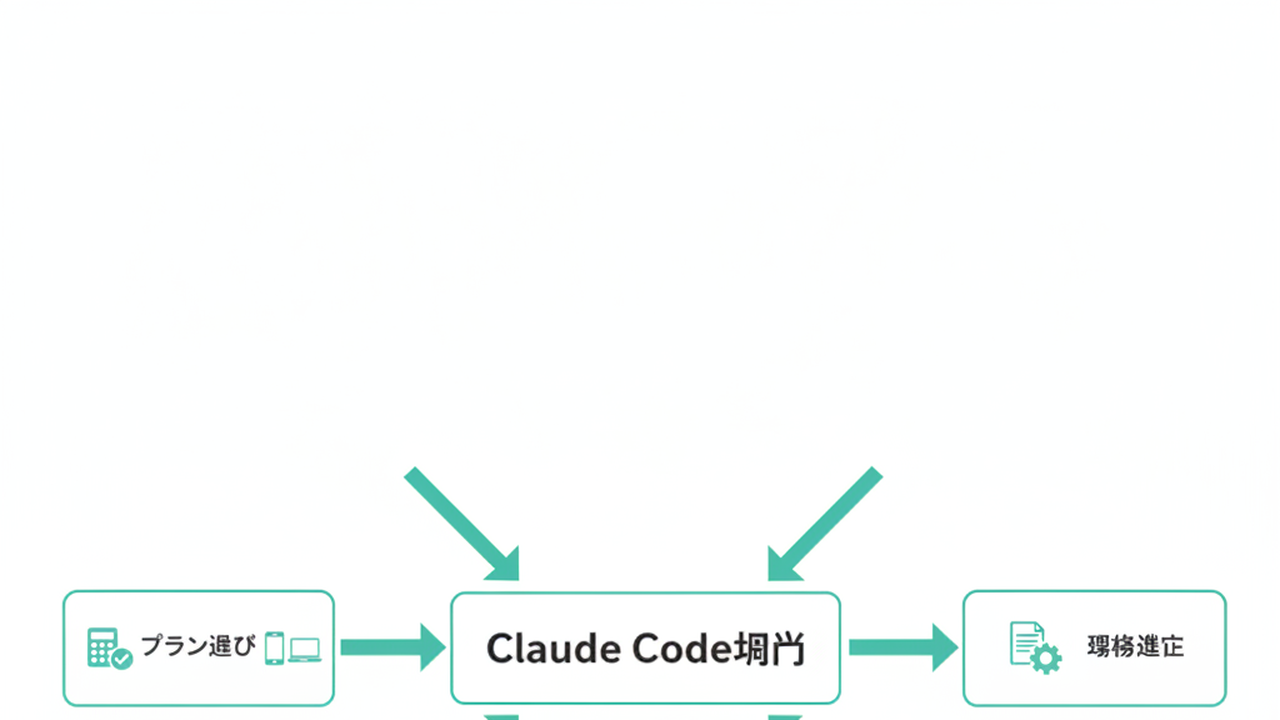
The first thing to spend time on isn’t setting up your computer. It’s resolving three decisions. Skip this and you hit “this isn’t what I expected” after the install.
Decision 1: Which plan to start with
As of June 2026, individual pricing runs in three tiers: Pro at $20/month, Max 5x at $100/month, Max 20x at $200/month. For team and enterprise plans, conditions are outlined separately for Claude Code — check the Help Center “Use Claude Code with your Team or Enterprise plan” for current terms. Individual pricing source: Anthropic official pricing.
The first decision sits between Pro and Max. My recommendation: start with Pro. Two reasons.
- Pro runs at $20/month within usage limits (Anthropic official “Manage costs”). In my observation, non-engineers don’t typically hit the ceiling in the first week
- Switching to Max is always possible at the monthly boundary. The rational trigger for starting at Max is having a clear picture that you’ll be using Claude Code 2–3+ hours per day for work purposes
For organizations with multiple users, check Team/Enterprise plan conditions at the Help Center above before moving. Detailed plan comparison is in Claude Code pricing.
Decision 2: Which machine to run it on
Claude Code officially supports macOS, Linux, and Windows (Anthropic official “Set up Claude Code”). Windows support includes both native installation via PowerShell and WinGet and the WSL (Windows Subsystem for Linux) route. The core decision: use your primary machine or spin up a separate one.
The most common setup among the non-engineers I consult with is Windows as primary. The WSL route adds an extra layer — you’re putting a Linux operating environment inside Windows. Microsoft’s official docs will get you through it in about 30 minutes. But if your goal is to be running within 30 minutes total, be aware of the risk: WSL setup alone can consume that time.
In my own practice, I tell Windows-primary people: “For the first week, borrow a macOS or Linux machine.” Company Mac loan program if one exists, or a family member’s MacBook. Reducing the probability of a frustrating first experience is what separates people who continue from people who don’t.
Decision 3: What work to try first
This is the pre-install decision people most often skip. “Install it and figure out something to try” leads to sitting frozen in front of a prompt 30 minutes later.
The first tasks I give non-engineer consultees fall into three categories:
- File organization: Tell Claude Code to “look through this folder and organize it”
- Meeting summary: Hand it a transcript and say “pull out only the decisions and action items”
- Process documentation: Give it a verbal explanation and say “turn this into a step-by-step guide for new employees”
None of these are coding. But they demonstrate within the first 30 minutes that Claude Code can read files and write files — the core capability. Deciding in advance “which piece of my work am I going to hand to Claude Code” determines what that first 30 minutes looks like.
The 30-Minute Fastest Path
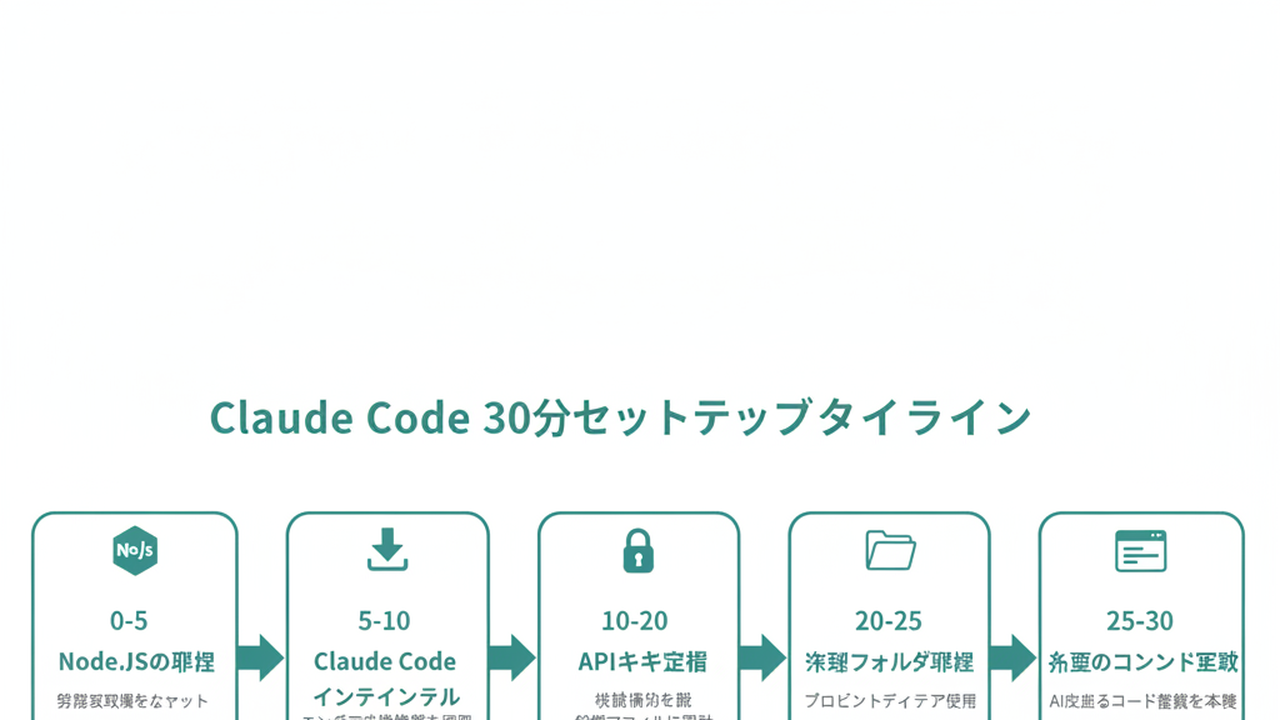
Once the three decisions are resolved, here’s the 30-minute timeline.
0–5 minutes: Check Node.js
There are two installation paths for Claude Code: global install via npm, and via Anthropic’s official native installer (Anthropic official “Set up Claude Code”). Today’s instructions assume npm. Reason: an npm environment is reusable when you later install other JS-based tools.
First check: is Node.js installed? Open a terminal and type node -v. If a number at v18 or above comes back, you’re fine. If “command not found” returns, install the recommended version from the Node.js official site. This takes under 5 minutes.
5–15 minutes: Install via npm
In your terminal: npm install -g @anthropic-ai/claude-code
Permission errors can appear here — covered in the trouble spots section. After the install completes, confirm with claude --version. If a version number returns, the install succeeded.
This point is usually around 10 minutes in. Most people have a small moment of “oh, it’s in” here.
15–20 minutes: Launch claude in a project folder
Decide which folder Claude Code will work in. Create an empty folder called “claude-test” on your Desktop and navigate there in the terminal. Then type just: claude
Claude Code’s design is to treat “the folder you’re currently in” as its work context. Launching it accidentally in your Documents folder would bring your work files into scope. For the first launch: always use an empty folder.
20–30 minutes: Browser authentication
The first time claude launches, a browser window opens with an Anthropic account login screen. Log in with your Pro account. Once authenticated, the terminal prompt returns and you’ll see a cursor-like input prompt waiting.
That’s roughly 30 minutes total. The screen shows a single input line waiting for you. Nothing appears to have happened — but this is the starting point.
The First 3 Prompts That Make It Click
Immediately after the 30-minute setup, what you type first determines whether you “get it.” Here are the first 3 prompts I give non-engineer consultees:

Prompt 1: Organize the files in this folder
In advance, drop 5–10 dummy files of mixed types into your claude-test folder. Images, PDFs, spreadsheets, text files — anything. Then type in the Claude Code prompt:
“Organize the files in this folder by creating subfolders by file type.”
Claude Code will read the folder contents, propose a structure, and ask for confirmation. Approve it, and files move into organized subfolders. Takes 1–2 minutes.
What non-engineers experience from this prompt: “I just controlled what’s inside my computer using natural language.” No terminal commands to memorize, no programming knowledge required. A sentence written in plain English triggered file operations. This is the moment most consultees first realize “this is something different.”
Prompt 2: Pull out the decisions and action items from this meeting transcript
Next is text processing. Place a meeting transcript text file in the folder — around 1,000 words is fine. Then type:
“Read transcript.txt and pull out only the decisions and action items as bullet points. Include assignee and deadline where available.”
Claude Code reads the text, structures it, and returns a bullet-point summary. Takes about 30 seconds.
What this delivers: “I now have something sitting beside me that reads and organizes things.” Before Claude Code, meeting cleanup meant doing it yourself or pasting into another tool. While Claude Code is running, that work completes inside the folder.
Prompt 3: Rewrite this procedure for a new employee
Third is document generation. Place a short text file in the folder — 500 words or so from your phone’s notes app after explaining your process verbally. Then type:
“Read procedure-notes.txt and rewrite it as a formatted procedure with headings that a new employee could follow. Add brief explanations for technical terms.”
What comes back is a structured procedure with headings and numbered steps. Takes about a minute.
What this delivers: “I can now externalize work knowledge that only existed in my head.” For many non-engineers, “articulating my own process” is the blocker before automation is even in the picture. Claude Code takes on part of that articulation work.
Run these 3 prompts in the 30 minutes after setup. Reach this point, and Claude Code stops being “a useful AI” and becomes “another person sitting at the desk.”
The 3 Stumbling Blocks and How to Clear Them
Reading this far and thinking “let me try it” is exactly when you’re most likely to hit something in the first 30 minutes. The three highest-frequency problems from my consultation history, with workarounds:
Block 1: Node.js version mismatch
After running the npm install command, many people hit an error. The majority trace back to Node.js version. Old v14 or v16 installations return compatibility errors.
Two options: update Node.js to the latest recommended version (LTS), or use a Node.js version manager (nvm) to specify v20. For the first 30 minutes, the former is simpler. Update to LTS, reopen the terminal, reconfirm with node -v.
Block 2: Permission error (macOS/Linux)
Running npm install -g on macOS or Linux can return “permission denied.” This happens when the global install destination folder lacks write permission.
You can push through with sudo npm install -g, but I don’t recommend it — npm permission issues tend to compound. The cleaner fix is redirecting npm’s prefix to a directory under your home folder (instructions are in npm’s official docs). Ten minutes of work, but it pays off by making every future JS tool installation cleaner.
Block 3: Hitting the usage limit
The third early sticking point is the usage limit. Pro plan has one (Anthropic official “Manage costs”). Getting excited and feeding long files back-to-back in the first few days can hit the limit.
Workaround for the first week: run shorter, more frequent prompts. Save long-document processing for after you know what you want to ask. That keeps results and usage both stable. Detailed pricing design is covered in Claude Code pricing.
What to Do in the First Week After Starting
Thirty minutes done, first 3 prompts ran, stumbling blocks cleared. What comes next determines whether Claude Code sticks or gets dropped.
The first-week plan I hand consultees:
- Days 1–2: Run the same 3 prompts again with different files, different work. Watch how results change with the same instruction
- Days 3–4: Write down 3 tasks from your actual work that you’d want to hand to Claude Code. Writing the list is enough — you don’t have to run them yet
- Days 5–7: From that list of 3, pick the simplest one and actually run it. If it doesn’t work perfectly, push through with up to 3 correction prompts
The key: don’t try to hand Claude Code your entire job. Week one is about one piece of your work — specifically, something you can explain the steps for in words. That’s what separates people who continue from people who disappear.
The 3-step practical usage guide is in Claude Code how to use. Once you’ve completed the 30-minute setup, head there next. If you’re also considering no-code AI agent options, a 7-tool no-code comparison is available.
Summary: 3 Decisions and the First Command
For everyone who searched “how to start Claude Code” and stalled — the essentials:
- 3 pre-install decisions: plan (start with Pro), device (macOS/Linux preferred; Windows via native PowerShell/WinGet or WSL), first task (file organization, meeting summary extraction, or procedure doc creation)
- 30-minute path in 4 blocks: Node.js check, npm install, launch in empty folder, browser authentication
- First 3 prompts, predetermined: file organization, meeting extraction, new-employee procedure doc
- 3 stumbling blocks: Node.js version, permission error, usage limit
- Stick with it: week one limits to one piece of work, max 3 correction prompts per run
Reach this point and Claude Code stops being “a tool to learn how to use” and becomes “someone else sitting at the desk.”
Clear 30 minutes tomorrow morning. Pro plan at $20 plus an empty folder plus a note saying “what work am I handing over first” — that’s all the preparation needed. By the end of the day, your sense of what this tool is will have changed.

AIを使いこなせない方は、この先どんどん差がつきます。僕はAIエージェントを毎日動かして、壊して、直して、また動かしてます。そういう泥臭い実践の記録をここに書いてます。理論は他の方にお任せしました。僕は動くものを作ります。朝5時に起きてウォーキングしてからコードを書くのがルーティンです。