Claude Code for Non-Coders: The 3-Step First-Day Guide (May 2026)
9,900 monthly searches for 'how to use Claude Code.' Here's everything you do on day one — 5-min install, 30-min first use, 1-hour workflow integration — from a non-coder's perspective.
What you'll learn in this article
- Where pricing and adoption questions around Claude Code stand right now
- Which plan or rollout stage fits the reader's situation
- Which follow-up article to open next for setup, cost, or bigger-picture context

“Can you walk me through Claude Code from the beginning?”
Since May, I’ve been receiving this request at about 10 per month. What the requests have in common: more than half the people asking have never written code.
They’ve used ChatGPT and Claude. They’ve glanced at the pricing page. But when they open a terminal, they stop. They don’t know what happens when they type “claude,” how to read what appears on screen, and after getting stuck in the first 30 minutes, they give up.
When those people say “I want to learn how to use it,” what they want isn’t conceptual explanation. It’s just the procedure for what to do in the first 5 minutes when they sit down at their desk tomorrow morning.
Today, from the perspective of a non-coder, I’m laying out the 3 steps you need for Claude Code’s first day. Every place where people get stuck, every workaround — it’s all in here. By the end of this article, you’ll know exactly what to do tomorrow morning.
References: Anthropic official Claude Code docs, Comix Inc. “AI-Native SMB Implementation Case Collection” (PR TIMES 2026-05-11)
What People Searching “How to Use Claude Code” Are Actually Stuck On
Search data shows “how to use Claude Code” getting around 9,900 searches per month in Japan (May 2026, author’s SEO tool data). Difficulty is moderate, and top-ranking articles are filled with conceptual explanations, pricing tables, and feature overviews.
But what’s actually in the searcher’s head is different.
From my consulting experience: about 80% of searchers are “people who stop the moment they open a terminal.” They’ve read the pricing and features. The only thing missing is the procedure for installing it on their own PC and what to do immediately after. That’s why they’re typing “how to use it.”
One more tailwind appeared here.
On May 11, 2026, Comix Inc. released a free “AI-Native SMB Implementation Case Collection” (PR TIMES). Compiled from about a year of their own operations: 100 skills and 30 agents, systematized for SMBs in early evaluation. The contents include morning work check-ins, end-of-day reviews, sales support flows, Chatwork monitoring — plus Gmail, Notion, and Google Calendar integrations and a 3-month implementation roadmap.
What’s striking is how little coding work appears in the collection.
Despite the name “Claude Code” suggesting it’s for writing code, the leading real-world use cases are in areas unrelated to code: meeting note summaries, email triage, SaaS interconnections, business process automation. This is where the actual front line is. People who don’t write code benefit most from this direction.
What searchers are looking for isn’t concepts — it’s “examples of work they can do tomorrow” and “the first 5-minute procedure.” This article focuses on exactly that. For pricing, see Claude Code Pricing Complete Guide. For enterprise 30-day deployment design, see First 30-Day Playbook. Today is focused on individual users — specifically, non-coders on their first day.
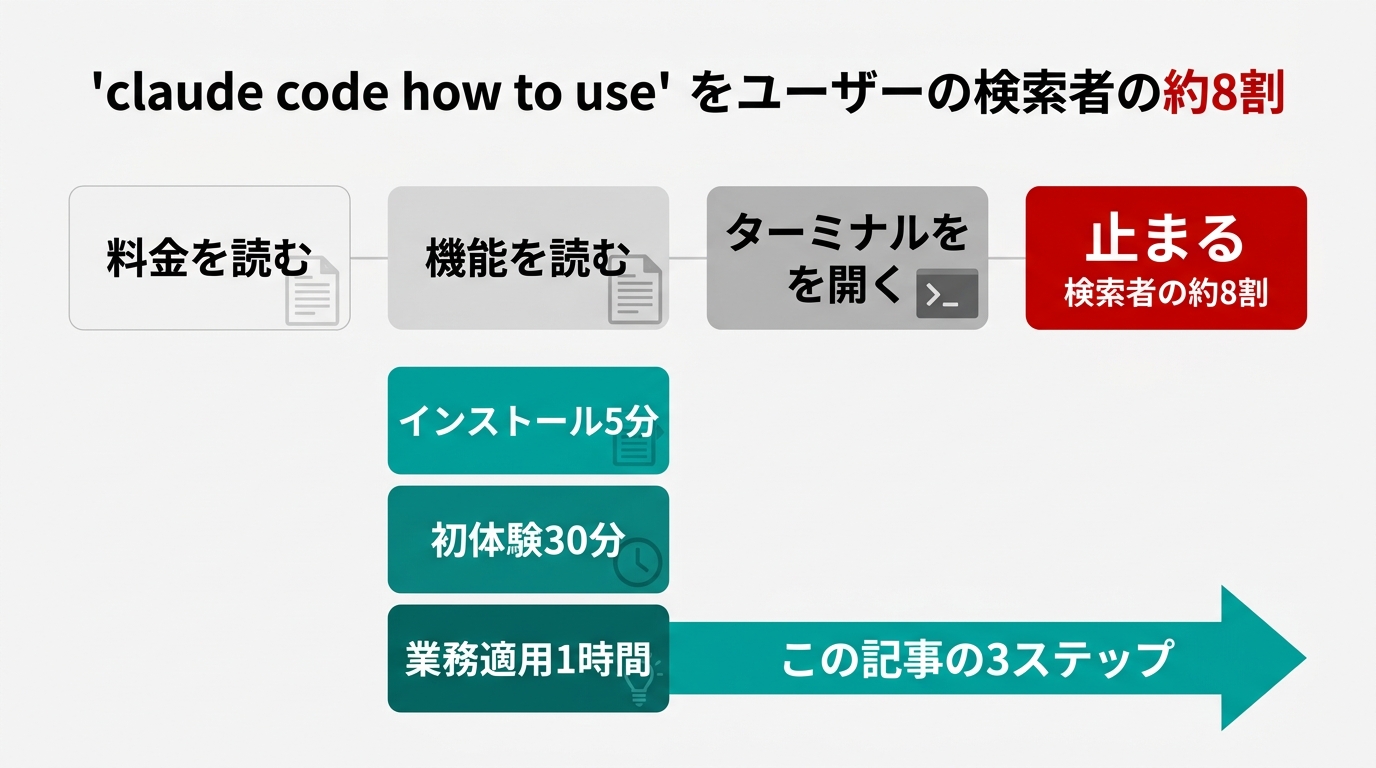
Step 1: Installation and Authentication — The “First 5 Minutes” Without Getting Stuck
Claude Code has three installation methods as of May 2026.
The officially recommended method is the native installer (Anthropic official). Paste this single line into a macOS terminal or Linux shell and run it:
curl -fsSL https://claude.ai/install.sh | bashThis automatically downloads the Claude Code binary, sets up the PATH, and configures auto-updates — even on a PC without Node.js or npm. Time required: about 1 minute depending on your connection.
Windows users can run it in native Windows environments like PowerShell or CMD — WSL (Windows Subsystem for Linux) is not required. For Windows setup, check the official docs for the latest instructions. If you prefer WSL, first enable it via Microsoft’s official instructions, then come back here.
Alternative methods: npm i @anthropic-ai/claude-code or Homebrew’s brew install --cask claude-code. Anthropic’s Help Center still references npm, but the current official recommendation is the native installer. For new installations, the native installer is the safe choice for update stability.
After installation, type claude in your terminal. On first run only, a browser will open automatically with an OAuth login screen. Log in with whichever Anthropic account you have: Pro, Max, Teams, Enterprise, or Claude Console (API). Return to the terminal and the chat interface launches.
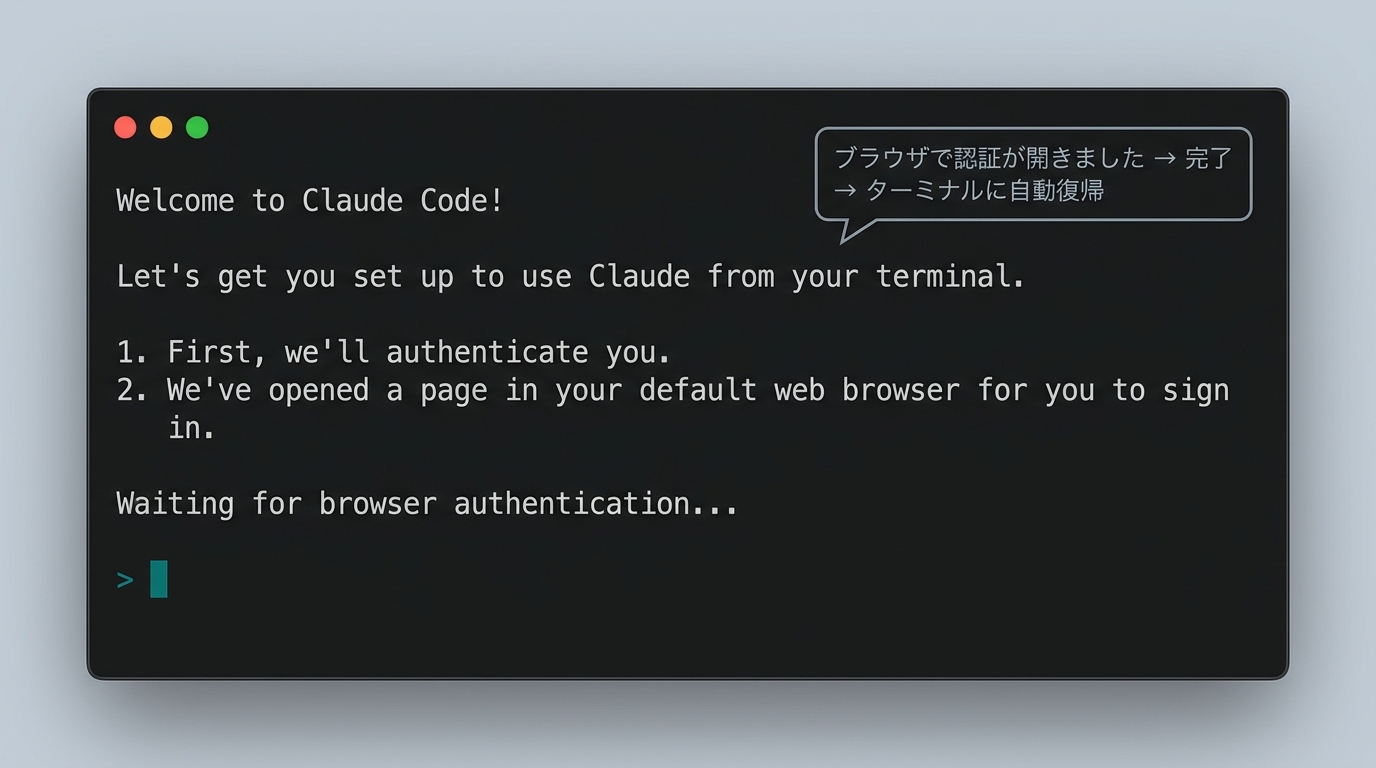
Two common sticking points:
First: No Anthropic account. Claude Code won’t launch without one. You need to log in with a Pro, Max, Teams, Enterprise, or Claude Console (API) account. Many people stop at “I can’t decide which plan.” If you’re stuck, spend 5 minutes on the pricing guide first.
Second: No admin rights on work PC. Being unable to install tools on company computers is more common than you’d expect. Telling IT “it’s Anthropic’s official installer, single curl command” sometimes gets approval in one business day. For strict MDM environments, trying it on a personal PC first and bringing it in afterward is the practical approach.
That’s it for Step 1 — about 5 minutes. The only two obstacles are admin rights and account availability. The procedure itself is one command.
Step 2: What to Do in the First 30 Minutes — Designing the “First Experience” for Non-Coders
Right after installation, the terminal shows a > input prompt. What now? Many people hit the second wall here.
“It’s a code-writing tool, so let me have it write some code.” They type “Build X with React” immediately. They can’t understand what comes out. They close the terminal, decide Claude Code is “too advanced for them,” and never open it again.
This is the primary cause of first-day abandonment.
What I ask everyone I advise is to use the first 30 minutes to do only 3 tasks that have nothing to do with code.
Task 1: Local folder organization. Open a folder on your desktop or downloads. Tell Claude Code: “Look at this folder, create new subfolders by purpose, and organize the files.” Even 20 or 30 mixed-up files get surprisingly well organized on the first try. Since Claude Code actually moves files, within a few minutes you grasp that this is “execution-type” rather than “conversational AI.”
Task 2: Summarize a text file. Any meeting minutes, long email, or book notes you have will do. Just write: “Summarize this file in half a page. End with 3 bullet points for decisions that need to be made.” Claude Code can read local files directly — no copy-paste needed — which is the key difference from ChatGPT.
Task 3: Extract a task list from your notes. Export rough notes or self-directed Slack messages, pass them to Claude Code. Ask: “Extract only the tasks I need to complete this week from this, and format them as a prioritized Markdown list.” When the list comes out and you compare it against your own priorities, you’ll experience something like “borrowing someone else’s brain.”
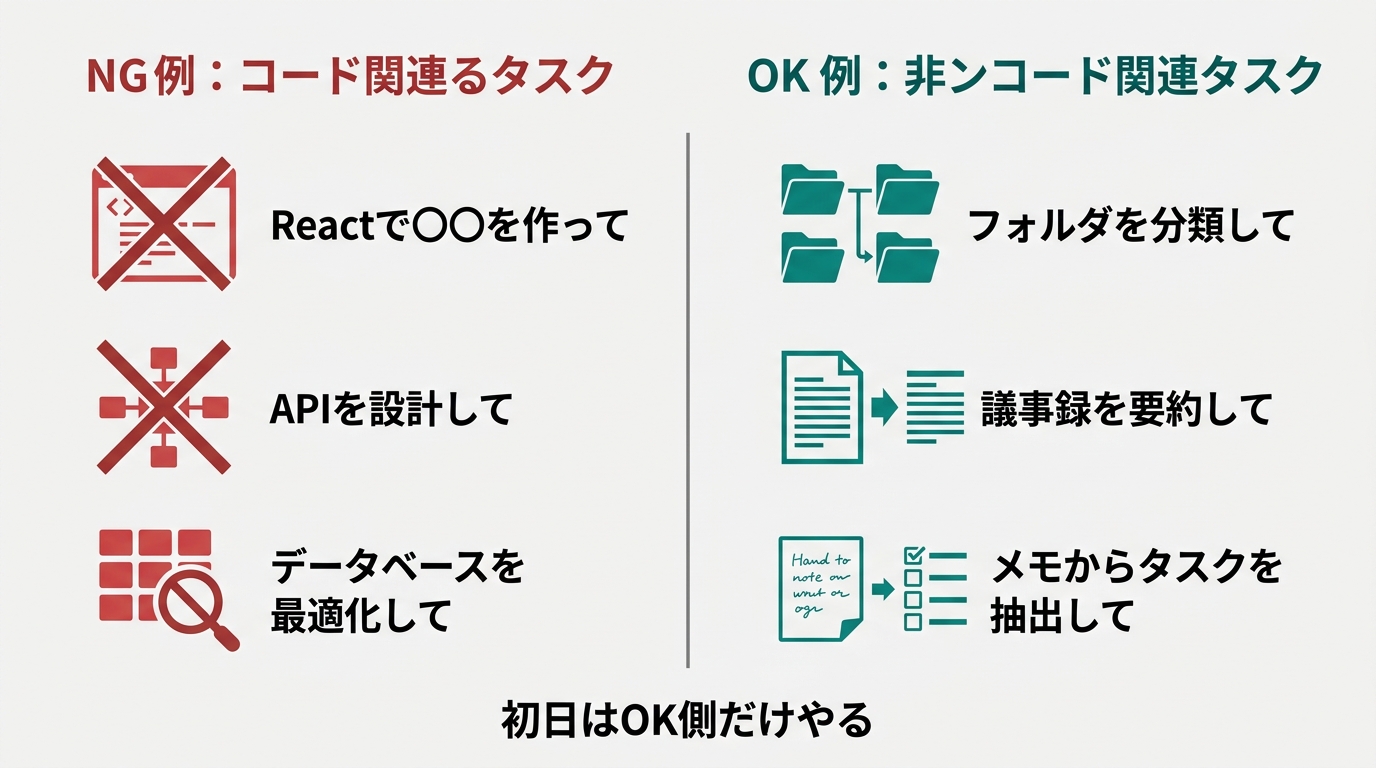
After completing all three, 30 minutes have passed.
Now the three faces of Claude Code click into place: the conversational AI face, the file operations tool face, and the business assistant face. Having it write code comes after all this.
The reason Comix’s case collection lists “morning work check-in,” “end-of-day review,” and “Chatwork monitoring” — none of which involve code — is right here. Of the three faces, the “business assistant” face has the highest demand in real SMB operations. Non-coders should start in exactly this direction.
Step 3: Apply It to One Workflow — The Moment “Using” Becomes “Delegating”
Once you’ve felt it “work” in the first 30 minutes, the next step is to spend an hour “applying it to exactly one of your workflows.”
The mistake here is getting excited about “I’m going to automate my entire operation.” Trying to change everything in one day means spending so much time on the design that you stop using it by day 3.
The right approach is to take one task from your daily work and hand it to Claude Code.
Three options I commonly recommend:
Option 1: Morning email check. Export your Gmail threads and pass them to Claude Code. Ask: “From this morning’s emails, extract only the ones that need a reply today, and summarize each in 3 lines.” No need for AppleScript or Google Apps Script. Manually copying the email text at first is fine.
Option 2: Processing unread Slack or Teams. Export channel conversations from a certain period and ask: “Extract only mentions directed at me and decisions I need to weigh in on, sorted by priority.” What used to take an hour for unread message processing gets done in about 10 minutes.
Option 3: Meeting minutes from recurring meetings. Pass your audio transcription output to Claude Code. Instruction: “Organize this by agenda item, separate decisions from action items, and add a list of action item owners at the end.” If you do this right after the meeting, the burden of writing minutes becomes nearly zero.
What happens here is the transition from “using” to “delegating.”
“Using” is constantly giving instructions, checking results, and issuing the next instruction — staying in the loop. Chat-style conversational AI stays in this mode by design.
“Delegating” is Claude Code determining the procedure and advancing on its own. Claude Code becomes embedded in your work flow, and results appear without you remembering that you gave an instruction.
This distinction is covered in more depth in an article on AI agent concepts, but for what’s achievable on day one: “completely delegate one workflow” is enough. Trying to delegate three and failing beats successfully delegating one.
3 Typical Failure Patterns on Day One — and How to Avoid Each
The 3-step design should get you through your first day. If it goes as planned: 5 minutes + 30 minutes + 1 hour, and by evening one workflow is running in Claude Code.
In practice, many people get stuck along the way. Three patterns I observe most frequently:
Pattern 1: Instructions too vague.
“Organize this folder nicely.” “Summarize it just right.” Then the result comes back and “it’s not what I had in mind.” This isn’t a Claude Code problem — it’s a human instruction design problem.
The fix is to split every instruction into three parts: Context (background information), Goal (what you want to achieve), Constraint (what not to touch, conditions). For folder organization: “This folder has files for Projects A, B, and C mixed together (Context). Create new folders per project and organize them (Goal). Don’t touch any screenshot images (Constraint).”
Pattern 2: Moving forward without checking results.
Giving the next instruction immediately after Claude Code completes something, without verifying. Claude Code actually performs file operations and runs commands. If you proceed without checking an incorrect operation, you’ll find “where did that file go?” three days later.
The fix: during day one, append “in one line, tell me what you just did” to every instruction. Claude Code will tell you. Build the habit of reading that before moving on.
Pattern 3: Diving into a complex project.
Opening your company’s production codebase on day one. Asking “fix the bug in our system,” applying Claude Code’s suggested change, and finding something else broke. I’ve seen this scenario multiple times.
The fix: on day one, always work in “a place where losing it wouldn’t matter.” Create an empty new folder and practice inside it. Never test in production code or locations with files you can’t afford to lose. This alone prevents first-day accidents.
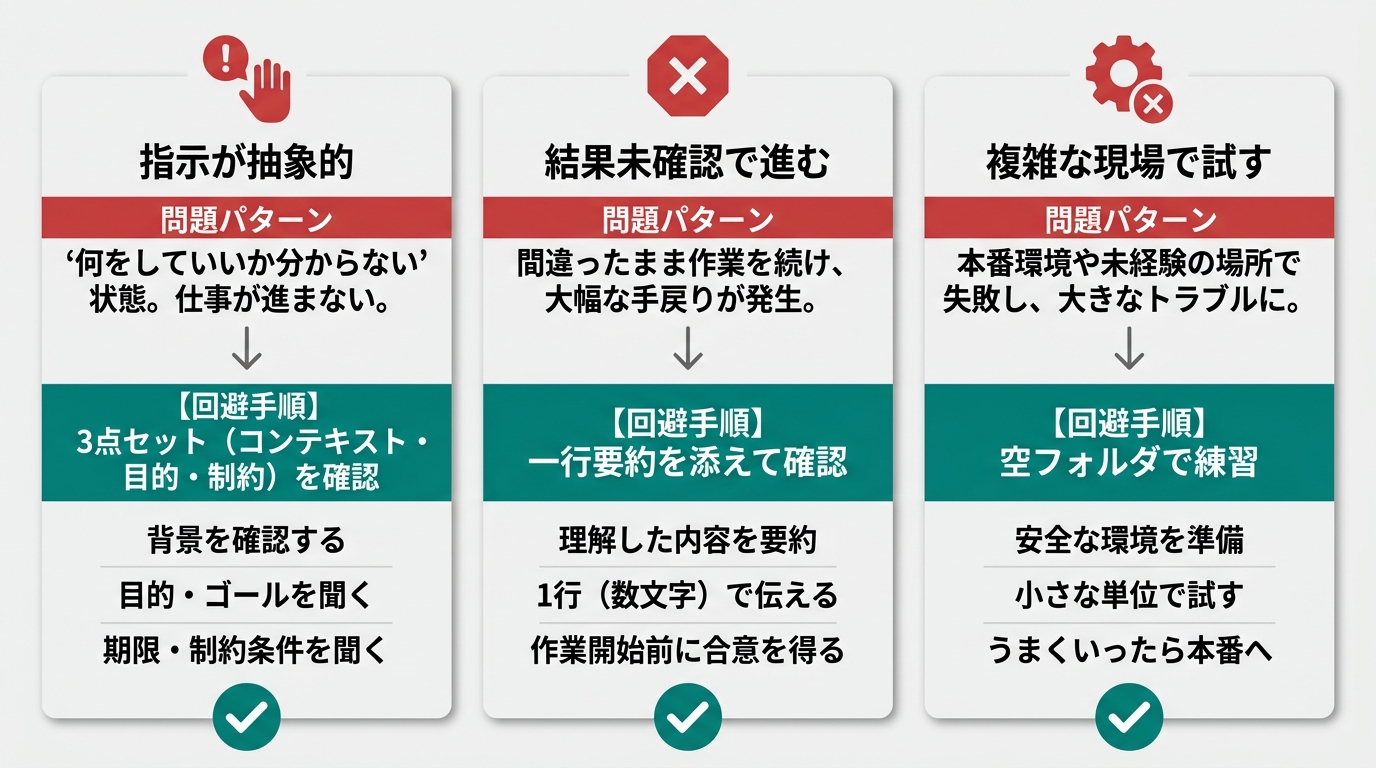
Avoiding these 3 patterns alone cuts the first-day failure rate roughly in half, in my experience.
How to Keep Going for a Week: The Context-Goal-Constraint 3-Part Instruction Template
When day one succeeds, on day two you’ll want to do the same work. That’s when people realize “I have to type the same instruction again,” and understand: “If I save this, I can reuse it every day.”
The reusable instruction format is the 3-part set from above.
Context: What you’re currently working on, what files or background are involved.
Goal: The state you want to achieve with this request. Write the human-side goal: “I want to be able to X,” “I want to decide Y.”
Constraint: What not to touch, conditions to maintain, output format specifications. “Don’t modify XX,” “Format as △△,” “In English.”
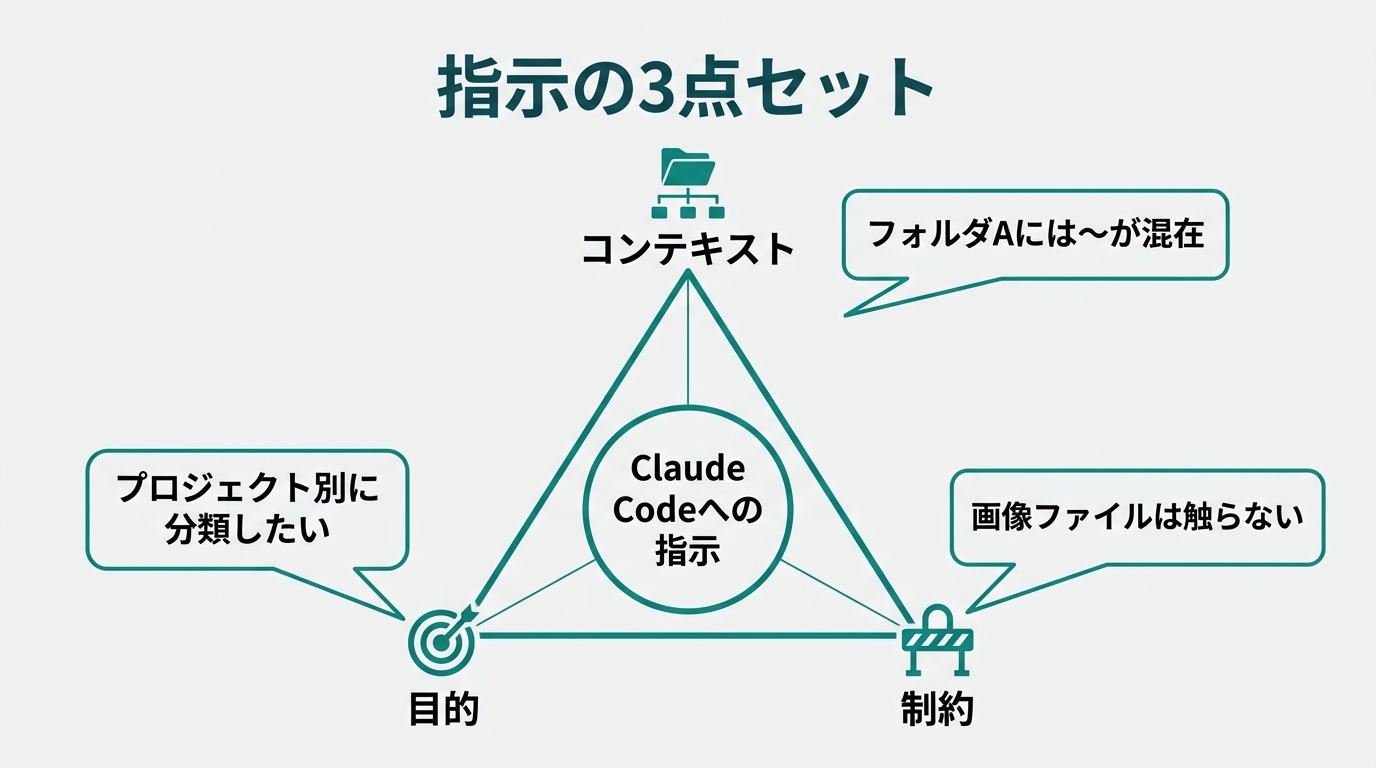
Start writing instructions with these 3 parts in mind and Claude Code’s output quality goes up a level. This is where the gap between coders and non-coders becomes decisive — coders unconsciously include all three; non-coders tend to skip context, and outputs become inconsistent as a result.
As you get comfortable, you’ll build 5–10 frequently-used instruction templates. Saving them as files named by task — “daily-mail.md,” “weekly-review.md” — makes them easy to maintain. Comix’s “morning work check-in” and “end-of-day review” make sense once you understand them as the company’s accumulated instruction template library.
The case collection, where templates have accumulated to 100 over a year, is a reference for what things look like when fully built out. You don’t need to build 100 in year one — starting with just 5 in the first week is enough.
Summary: The Real Meaning of “How to Use It” Is Decomposing Your Work, Not Code
Here’s a recap of the 3 steps for Claude Code’s first day:
- Step 1: Native installer, 5 minutes. Type
claude→ browser OAuth authentication - Step 2: First 30 minutes: only non-code work. 3 tasks: folder organization, summarization, task extraction
- Step 3: Replace exactly 1 of your workflows with a “delegation” design
- 3 failure patterns to avoid: abstract instructions, proceeding without checking, complex production environments
- 1-week sustainability: turn instructions into templates using the context-goal-constraint 3-part set
The real meaning of “how to use Claude Code” isn’t the skill of making it write code — it’s whether you can decompose your work into “units that can be delegated.” Non-coders already have the mindset for decomposing operations, which actually makes it easier.
Tomorrow morning, open your terminal and type claude once. If even one task gets onto Claude Code that day, your work hours will definitely get shorter.
From “using” to “delegating.” The first step to being on the AI-literate side is smaller than you think.
References
- Anthropic official Claude Code docs: https://docs.anthropic.com/en/docs/claude-code/overview
- Comix Inc. “AI-Native SMB Implementation Case Collection” (PR TIMES 2026-05-11): https://prtimes.jp/main/html/rd/p/000000262.000002500.html
- Claude Code pricing complete guide: /en/blog/n2026050700014201/
- Claude Code enterprise onboarding design (First 30-Day Playbook): /en/blog/n2026050600013901/
- What is an AI agent (concept overview): /en/blog/n2026050800014501/

AIを使いこなせない方は、この先どんどん差がつきます。僕はAIエージェントを毎日動かして、壊して、直して、また動かしてます。そういう泥臭い実践の記録をここに書いてます。理論は他の方にお任せしました。僕は動くものを作ります。朝5時に起きてウォーキングしてからコードを書くのがルーティンです。