Vibe Coding Tools 2026: Claude Code vs Cursor vs Copilot — Pick One for Your Stage
Claude Code, Cursor, GitHub Copilot, and Codex compared across three developer stages: beginner, intermediate, and team. A decision framework built from three same-week reviews to help you pick one tool this weekend.
What you'll learn in this article
- Where pricing and adoption questions around Claude Code stand right now
- Which plan or rollout stage fits the reader's situation
- Which follow-up article to open next for setup, cost, or bigger-picture context
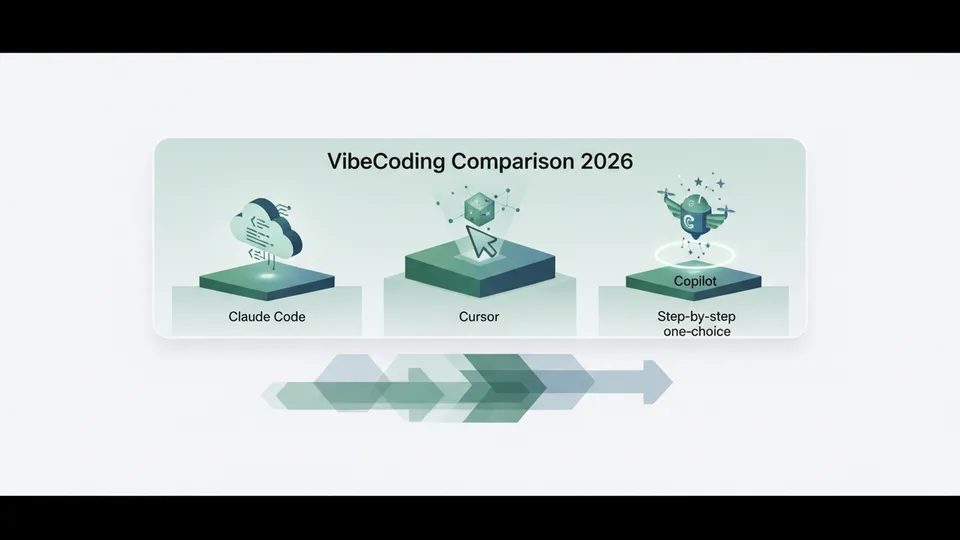
In the morning I open Cursor. Over in Slack, a PR from a teammate built with GitHub Copilot comes in. On my terminal, Claude Code is running. Somehow I ended up with three vibe coding tools running simultaneously on the same desk.
I’m probably not alone. “Which one should I actually use?” is a question that’s being asked again right now, in June 2026. Built In, ITmedia Tenzai, and MarkTechPost all published comparison pieces in the same week — I read that as a signal.
But after reading all three side by side, what struck me was this: a comparison table alone doesn’t give you the answer. The same tool gets called “best-in-class” in one article and “intermediate-only” in the next. Why the split opinions? There’s one reason: the right answer changes depending on which stage you’re at.
In this article, I combine my own “failure → Cursor comeback → Claude Code hybrid” experience with the common points all three outlets raised, to give you one pick per stage.
The One Thing You Can Do After Reading This
Let me put the exit first. When you finish reading, here’s the action available to you:
“Identify your stage (beginner / intermediate / team) and spend 60 minutes this weekend touching the one tool for that stage.”
This article is not asking you to try all four tools. “Install everything and try everything” is the first trap — I’ll explain why later. So right after reading, commit to just one. That’s the point.
The three stages are:
- Stage 1 (Beginner): Rarely written code / have a history of burning out → Start with Cursor
- Stage 2 (Intermediate): Want to automate your own work / want to run things from CLI → Shift toward Claude Code
- Stage 3 (Team): Multiple people touching the same codebase → Divide roles between GitHub Copilot + Claude Code
If you think “I’m probably Stage 2,” it’s fine to read through the Stage 2 section and then continue to Stage 3. I designed this so you don’t have to read everything.
3 Traps That Stall Tool Decisions
Going in without knowing the traps locks you into a cycle where you just accumulate tools and exhaust yourself. I personally lost about two months to this.
Trap 1: Install Everything and Try Everything
Most people start by installing “Claude Code, Cursor, and Copilot — all of it.” I did the same. What happens next: every tool gets used halfway and stalls.
Built In’s four-tool evaluation flagged a common pattern: beginners who spread their investment across multiple tools are more likely to give up. Reported as a fact, it matches my experience exactly.
The escape is simple: commit to one tool for one month. Only add a second tool when the first feels limiting.
Trap 2: The Misconception That More MCPs = Smarter
This is a point reportedly highlighted in ITmedia Tenzai’s pitfalls piece. MCP (Model Context Protocol — the mechanism that connects AI to external tools) sounds like more is better. In practice, it often works in reverse.
Here’s why: with 10 MCPs loaded, the AI has to decide “which MCP should I call here?” every single time. That burns context and degrades the quality of decisions. Microsoft’s official guidance reportedly recommends quality over quantity in MCP design.
In my case, dropping from 8 MCPs to 3 made Claude Code noticeably faster and more accurate.
Trap 3: Picking by Popularity
“Everyone uses Cursor, so Cursor.” “Claude Code is trending, so Claude Code.” The reason this becomes a trap is clear: the tool doesn’t know what stage you’re at.
MarkTechPost’s 15-tool cross-comparison reportedly concluded: “There’s no single strongest tool. There’s only the most appropriate tool.” Obvious in theory, easy to forget in the moment of choosing.
The escape: instead of reading popularity rankings, look at your own work log from the past week. What tasks actually consumed your time? That’s where tool selection should start.
Why I Use Three Stages to Categorize Vibe Coding Tools
Why this three-stage framework? Three reasons.
First, each tool was designed with a specific type of user in mind. Cursor aims for IDE-integrated, visual-first experience. Claude Code prioritizes freedom of instruction through CLI. GitHub Copilot was built from day one around team standardization. Aligning with the tool’s assumptions reduces friction.
Second, the features worth ignoring differ by stage. A beginner jumping into CLI burns out on memorizing commands before writing a single line of code. A team going all-in on Cursor alone loses the ability to discuss code in PRs. Mismatch your stage and a good tool works against you.
Third, you can see when to switch. When you’re conscious of “moving from Stage 1 to Stage 2,” you have a concrete answer to when to try the next tool. Not “I kind of want to try something new” — but “my stage changed, so now I try this.”
Three Questions to Find Your Stage
Stage identification is simple. Answer three questions.
Question 1: Can you “read” code?
You can look at someone else’s code on GitHub and roughly understand what it’s doing. You can follow if statements and for loops. If “no,” you’re Stage 1.
Question 2: Do you have 3 or more work tasks you want to automate?
“I want to automate the weekly report I do every Monday.” “I want Slack to send me a morning summary.” If you can write out three specific ones, you’re at the entry point to Stage 2.
Question 3: Do you ever hand off code to someone else or get it reviewed?
If yes, Stage 3. If no, you’re somewhere around Stage 2.5 in individual development.
Answer questions 1 through 3 in order. The first one where you answer “no” — the stage before that is where you are right now.
Stage 1 (Beginner): The First Pick Is a “See It and Touch It” Tool
For Stage 1 people, the biggest wall is staying in the state of not knowing what’s happening. When npm install is running in the terminal, you can’t see what’s going on. When an error appears, you can’t find where to start fixing it.
What you need here is an environment where everything is visible on screen. Specifically: a VSCode-based IDE with AI built in. Cursor and GitHub Copilot (VSCode extension) both fit this.
Why I Recommend Cursor
For Stage 1, Cursor is my first recommendation. Three reasons.
First, it’s usable immediately after installation. Even without prior VSCode experience, the first-run onboarding is thorough. Japanese is supported, so there’s almost no confusion navigating the settings.
Second, you can experience “asking a question before writing code.” Cmd+L to chat, Cmd+K to generate code. You describe what you want in plain language, and candidates appear right there. For people who’ve burned out before, this “start from words” experience tends to hit differently.
Third, it explains mistakes on the spot. When an error appears, you can hand the entire error screen to the AI and get back “this is caused by X — fix it by doing Y.” That “someone explaining it right next to me” was exactly what I needed during my burnout years.
// Example of the first code I ran in Cursor
// Used Cmd+K with the prompt: "Write a function that sends 'good morning' to Slack"
async function sendMorningMessage() {
  // Call the Slack Webhook
  const url = process.env.SLACK_WEBHOOK_URL;
  await fetch(url, {
    method: 'POST',
    body: JSON.stringify({ text: 'good morning' })
  });
}
This is part of the first work tool I ever wrote in Cursor. I pressed Cmd+K, typed “write a function that sends good morning to Slack,” and this came out with comments. From there, I kept asking “what’s an environment variable?” and had something working in 30 minutes.
GitHub Copilot as an Alternative
There’s also a path into Cursor via GitHub Copilot. If you already use VSCode at work, or plan to move into team development later, Copilot has lower switching costs.
That said, for Stage 1, my recommendation is still Cursor. Copilot is “completion-centered,” Cursor is “dialogue-centered.” For people who’ve burned out before, having a conversational partner is more sustainable — reportedly a common thread across all three publications.
Stage 1 people don’t need to touch Claude Code yet. Diving into CLI is plenty early enough after moving to Stage 2.
Stage 1 Reference Articles
For more angles on starting with Claude Code:
- Three Decisions for Starting with Claude Code: Sorting through where to begin
- A Realistic Look at Claude Code Pricing: The ¥3,000–¥30,000/month range
- The First 3 Steps for Using Claude Code: A guide from the “can’t code” side
Use these when you feel ready to move to the next stage.
Stage 2 (Intermediate): Switch Toward “Freedom of Instruction”
For Stage 2 people, the challenge is what to do the moment Cursor starts to feel limiting. Specifically, you start noticing symptoms like these:
- “I want to run the same operation across three files, but Cursor does them one at a time.”
- “I want to hand off terminal operations to AI, but Cursor only works inside the editor.”
- “I want to rewrite everything across multiple directories in one shot.”
This is when it’s time to reach for a CLI-type tool. The main player: Claude Code. The runner-up: OpenAI’s Codex CLI.
What Changes When You Switch to Claude Code
What actually changes when you move to Claude Code? The biggest shift: the instruction can be rougher.
With Cursor, you have to specify “fix this function in this file.” With Claude Code, you can say “take the aggregation batch I wrote last week and make it send a Slack report,” and it will find the relevant files itself and fix them. In my experience, the speed of building work tools was roughly three times faster.
That said, let me flag the sticking points upfront.
Sticking Point 1: The anxiety of files being rewritten without seeing the diff
Claude Code operates from the terminal, so file changes aren’t as visible. At first I was nervous, so I tested on a copied directory. Until you’re comfortable, commit via git frequently so you can always revert.
Sticking Point 2: The MCP configuration rabbit hole
As I mentioned in Trap 2 above — getting greedy with MCP setup from the start leads to a dead end. Start with just three. Here’s the configuration I use:
# Only 3 MCPs to start with
# 1. File system operations
# 2. GitHub integration
# 3. One service from your actual work (Slack, Notion, or Linear — pick one)
Add a fourth only when a genuine need arises. This keeps response quality stable.
Sticking Point 3: API billing going over budget
Experienced users are especially prone to this one. Claude Code consumes a large volume of tokens under the hood because you can give rough instructions and it still works. Without budget awareness in the first month, you can end up with 2–3x the expected bill. Set a monthly cap and build a habit of checking weekly.
Codex CLI as a Competitor
OpenAI’s Codex CLI is also a viable option. Claude Code and Codex CLI share similar design philosophies, but reportedly differ slightly in where they excel, per all three publications.
A rough split for practical use:
- Refactoring across an entire codebase: Claude Code is more reliable
- One-shot generation of a new prototype: Codex CLI is faster
- Editing a mix of documentation and code: Claude Code handles it better
After using both, I settled into: Claude Code as my primary for work tool development, Codex CLI for quickly prototyping new ideas.
Keeping Cursor at Stage 2
You don’t need to completely drop Cursor here. I still open Cursor when I want to “think while looking at code on screen.” There are situations where building in Claude Code and finishing in Cursor is the most efficient combination.
Think of Stage 2 not as “switching tools” but as “swapping which tool plays the lead role.”
Stage 3 (Team): Stop Picking One and Build a Division of Roles
The moment you arrive at Stage 3, the rules change. What’s optimal for an individual and what’s optimal for a team become different things.
Having an entire team use only Claude Code in team development tends to erode the review culture in PRs. Going all-in on Cursor alone slows down cross-file refactoring. So at Stage 3, stop picking one and build a division of roles — that’s the answer.
The Basic Structure for Dividing Roles
Here’s the division I run with my current team of five:
| Tool | Role | When It’s Used |
|---|---|---|
| GitHub Copilot | Everyone’s IDE standard | Line-by-line PR review, code completion |
| Claude Code | Primary for individual work | Work tool development, multi-file refactoring |
| Cursor | Design phase | Architecture discussion, code reading |
The core of this structure: code that gets committed and lands in a PR goes through Copilot review regardless of which tool wrote it. That’s what keeps review standards consistent across the team.
Three Walls You Hit When Rolling Out to a Team
Stage 3 has its own unique friction points.
Wall 1: License costs stack up
Contracting all tools for five people can exceed ¥100,000/month. A realistic approach: start with “everyone on Copilot only,” and make Claude Code request-based until you can justify the cost.
Wall 2: Prompts become siloed
“That person is really good at structuring Claude Code prompts” situations will emerge. For team operations, you’ll eventually need a system where prompt templates are managed in a shared repository. My team stores these in a prompts/ directory on GitHub.
Wall 3: Security and confidential information
This is the heaviest wall. You need to verify in the contract terms that internal code isn’t going to the AI provider for training. For Claude Code, make it mandatory for everyone to enable the “don’t use for training” setting. Neglect this and you’ll have a fire to fight later.
Options from MarkTechPost’s 15-Tool Comparison
The 15 tools reportedly surveyed by MarkTechPost include enterprise-grade options: Aider, Continue, Sourcegraph Cody, Tabnine, among others. Knowing these exist as Stage 3 options means you don’t have to be locked into Copilot + Claude Code.
In my experience, though, expanding the option set too far worsens Wall 2 (prompt silos). Until a team reaches 10+ people, keeping main tools to 2–3 makes operations noticeably easier.
Three Signals That It’s Time to Switch Stages
Without visibility into when to move, you might stay in Stage 1 for years.
Signal 1: You’ve Made the Same Manual Fix Three Times
You’ve been doing “fix this file in Cursor → now this file → now this one” three times in a row. At that point, you’re already standing at the entrance to Stage 2. That’s a sign that batch CLI processing would be faster.
Signal 2: You Need to Share Code With Someone
You need to hand off or get a review on code you built with your own tools. That’s the transition point to Stage 3 — time to shift from individual optimization to team optimization.
Signal 3: API Billing Has Started Exceeding Budget
This might be a signal that you’re using the wrong tool for the job. If Claude Code is running over ¥30,000/month, it’s time to review your setup. Options: cut MCPs, make your instructions more specific, or go back to Cursor for visual work.
If even one of these three signals appears clearly, that moment is when you move to the next stage.
The Courage to Let Go
The hardest part of switching might be letting go of attachment to the current tool. If Cursor is what brought you back from burnout, it’s hard to walk away from. I know the feeling.
But tools are means, not ends. Choose the one that serves the goal — making work easier, building something. Not abandoning the old tool, but putting it on the shelf. If you come back to it in six months, you can use it again.
Summary: Pick One Tool to Run This Weekend — 60 Minutes
- Stage 1 (Beginner): Install Cursor first. Spend 60 minutes writing one Slack notification function.
- Stage 2 (Intermediate): Keep Cursor and add Claude Code. Spend 60 minutes automating one real work task.
- Stage 3 (Team): Move to GitHub Copilot + Claude Code together. Spend 60 minutes creating a team prompt template repository.
The common thread across all three publications (Built In, ITmedia Tenzai, MarkTechPost) in the same week: there is no single strongest tool. That was reportedly the shared conclusion. I landed at the same one in this article.
But nothing changes without action. Take 60 minutes today — right after finishing this — and run just one thing. That’s the only way out of the exhaustion cycle of endlessly comparing tools.
Let me close with a candid note from someone who burned out: You can’t compete with professional engineers. But you can write code that makes your own work easier. The first step is not getting stuck on tool selection. If you get stuck, come back to this article.

正直、一度エンジニアは諦めました。新卒で入った開発会社でバケモノみたいに優秀な人たちに囲まれて、「あ、私はこっち側じゃないな」って悟ったんです。その後はカスタマーサクセスに転向して10年。でもCursorとClaude Codeに出会って、全部変わりました。完璧なコードじゃなくていい。自分の仕事を自分で楽にするコードが書ければ、それでいいんですよ。週末はサウナで整いながら次に作るツールのこと考えてます。